eSigner is a browser-based application that enables users to add electronic signatures and digital signatures to documents, including PDF files.
This guide demonstrates two ways to sign a PDF in eSigner. The first is to add a visible, annotation-based electronic signature that can be created as a typewritten signature, a handwritten signature, or an uploaded image of a signature. The second is to apply both a visible annotation and a digital signature using a document signing certificate purchased from SSL.com. The digital signature provides cryptographic verification of the signed PDF and is embedded in the document separately from the visible signature annotation.
Combining an annotation-based signature with a certificate-based digital signature gives a PDF both a clear visual indication of who signed the document and cryptographic protection. The visible annotation allows recipients to readily recognize the signer’s approval, while the digital signature can authenticate the signer’s identity and help confirm that the document has not been altered after signing. Together, these capabilities make the signed PDF easier to review while providing evidence of signer authenticity and document integrity.
Requirements
- An active eSigner account: Refer to this guide to setup an eSigner account: Getting Started with your eSigner Account
- To add digital signatures that indicate the name of the user (person or organization) as the signer, you will need to purchase a document signing certificate from SSL.com and enrol it in the eSigner cloud signing service. This linked guide provides detailed instructions: Enroll with eSigner for Remote Document and Code Signing
Prepare Your File for Signing
- Login to your eSigner account.
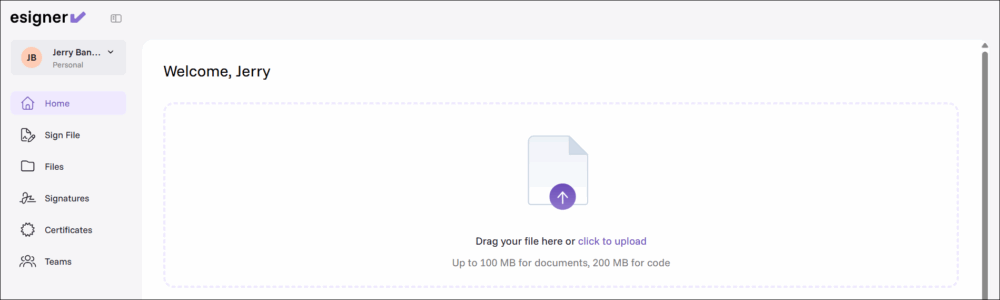
- Click Home from the menu. Next, click anywhere on the upload box to select your PDF for signing.
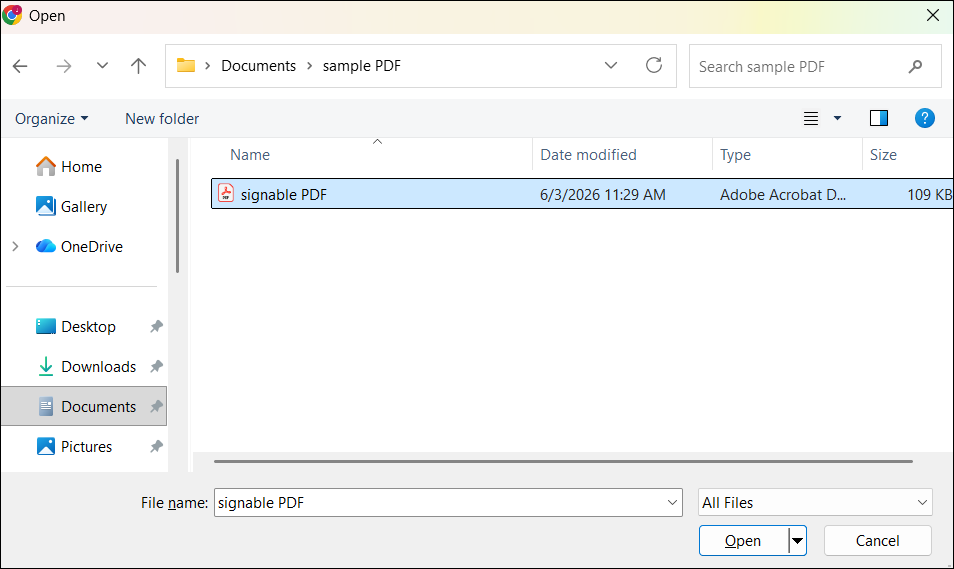
- From your computer, select the PDF and click the Open button to upload it to eSigner.
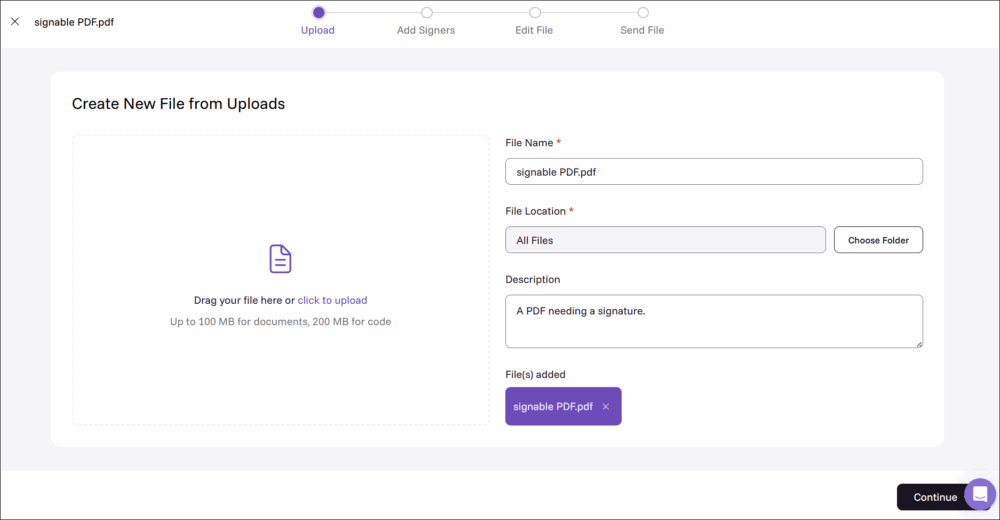
- Format the components of the PDF and store it in eSigner. All files uploaded to eSigner are securely stored.
File Name: Set a name for the document which you can use to easily navigate in eSigner.
File Location: Choose which folder in your eSigner account you want the document to be stored.
Description: Add a short note describing the document so you can provide context to it when browsing through your files saved on eSigner.
After accomplishing the required fields, click the Continue button.


Choose Your Signing Method
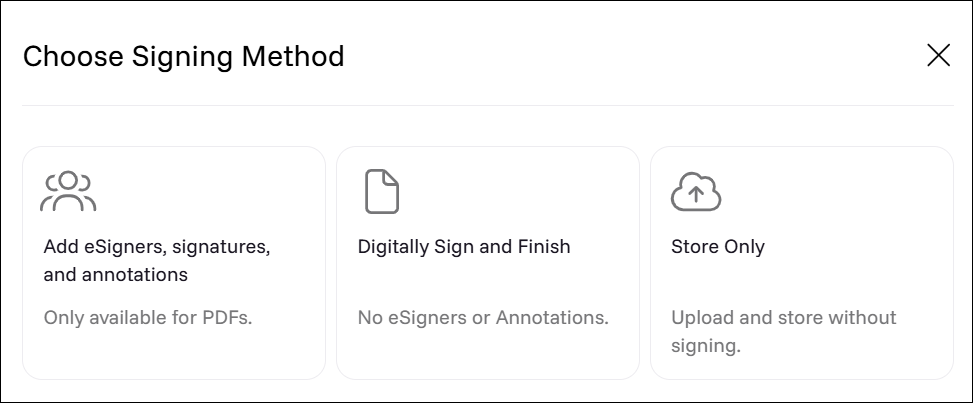

You will be prompted to choose how you want to sign your PDF. Choose your signing method based on the information below.
Add eSigners, signatures, and annotations: Choosing this will set two types of signatures to your PDF: an annotation-based electronic signature configured on the eSigner app that produces a visible mark (i.e. First Name and Last Name) on the signed file and a certificate-based digital signature.
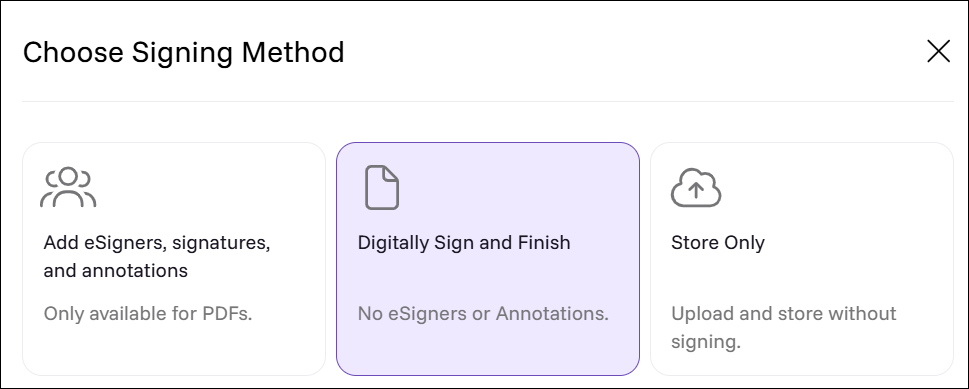
Digitally Sign and Finish: There will be no visible annotation with this option. You are required to use a document signing certificate from SSL.com, and enroll it in eSigner. The details of the signature can be viewed and verified through applications like Adobe Acrobat Reader.
Add eSigners, signatures, and annotations
- For your signing method, choose Add eSigners, signatures, and annotations
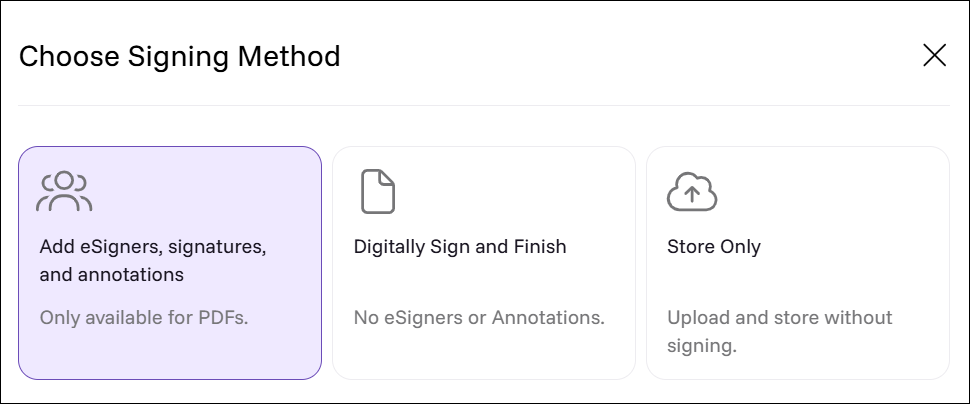
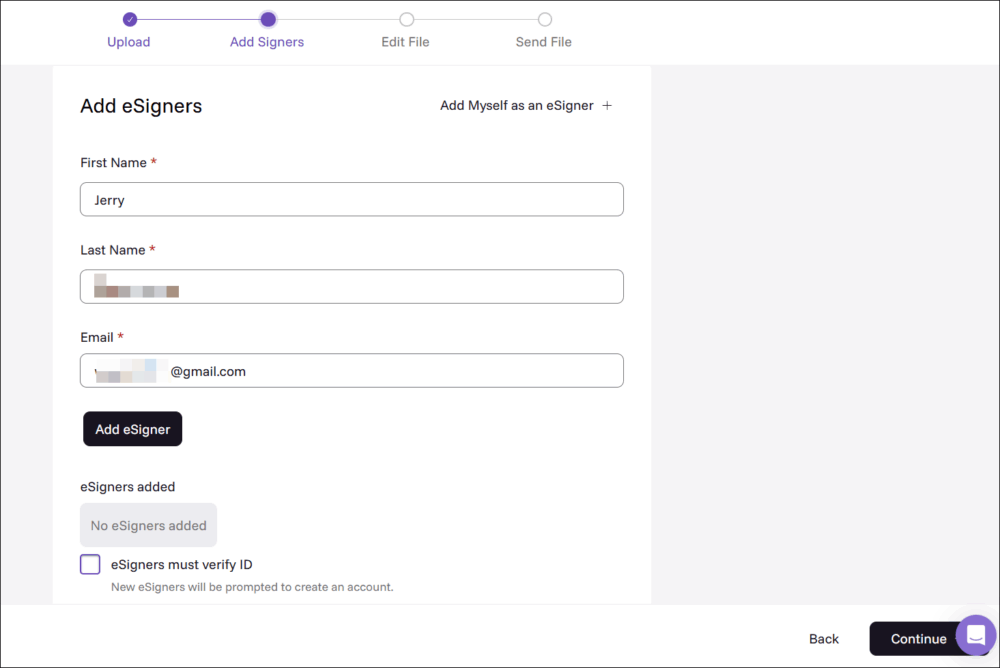
- To apply an annotation-based signature, click this option: Add myself as an eSigner to auto-populate the required fields for First Name, Last Name, and Email and automatically add you as the signer.
You can also manually type the required fields and then click the Add eSigner button.
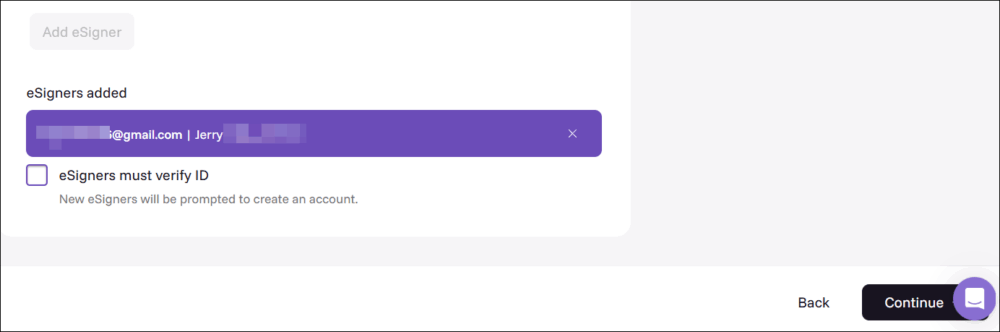
- You can confirm that you have been added as a signer to the document if your name and email address appears on the eSigners added section. Click the Continue button to proceed.
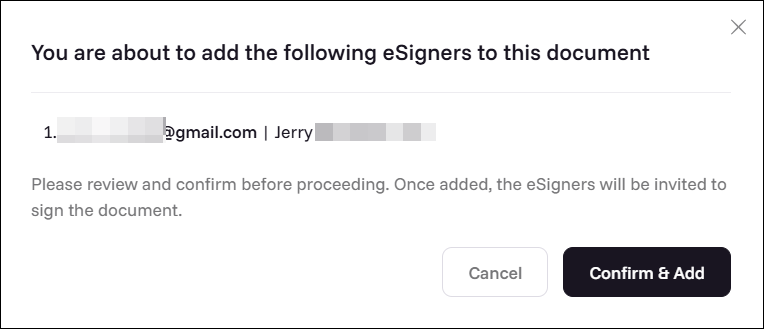
- When prompted to confirm, click Confirm & Add.
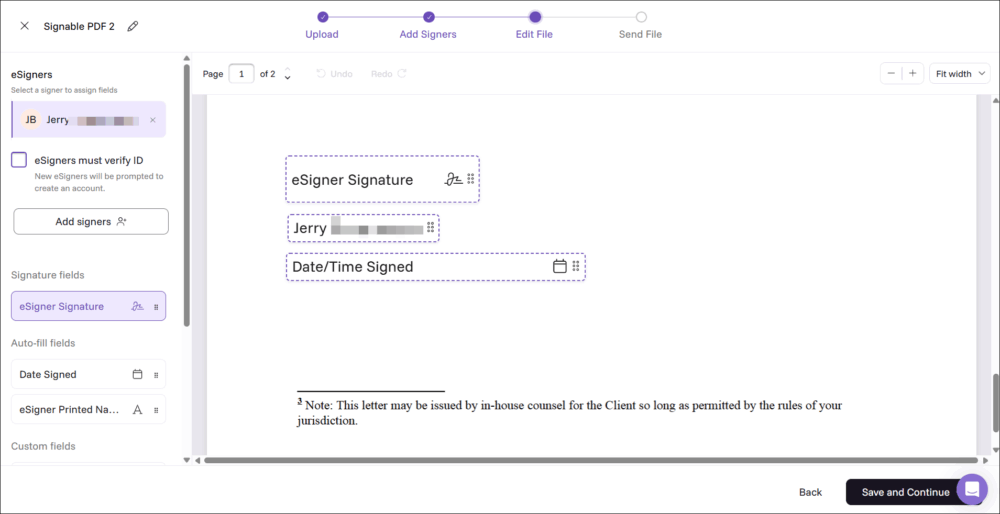
- You will see placeholders for fields that you can add to the document. Drag and drop the placeholder to the document preview pane.
The required field is your eSigner Signature (typewritten style, handwritten style, or image-based)
Optional fields include auto-fill information including the date of signing and your first and last name
Click Save and Continue button to proceed.
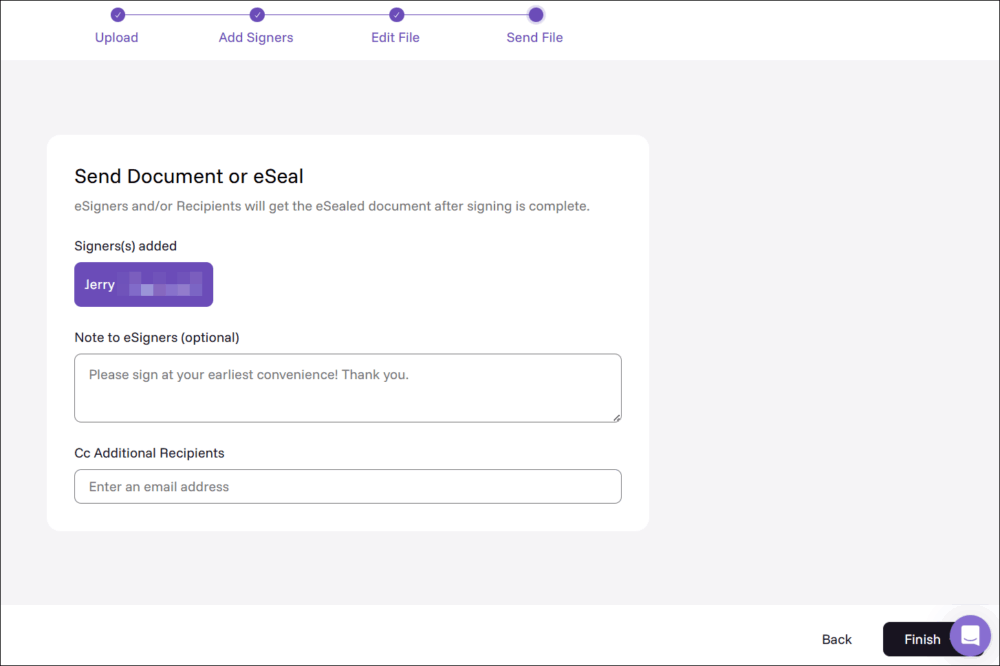
- A dialog box will appear stating that you will get a copy of the signed document via email. Click the Finish button to confirm.
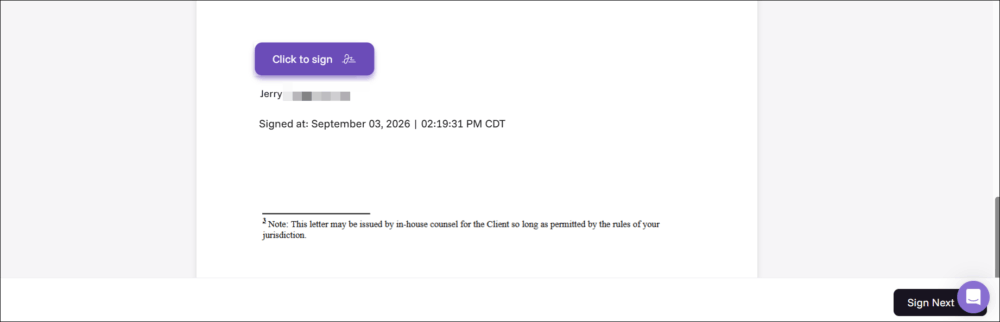
- Hover your mouse to the signature placeholder.
Click the Click to sign button to set your signature.
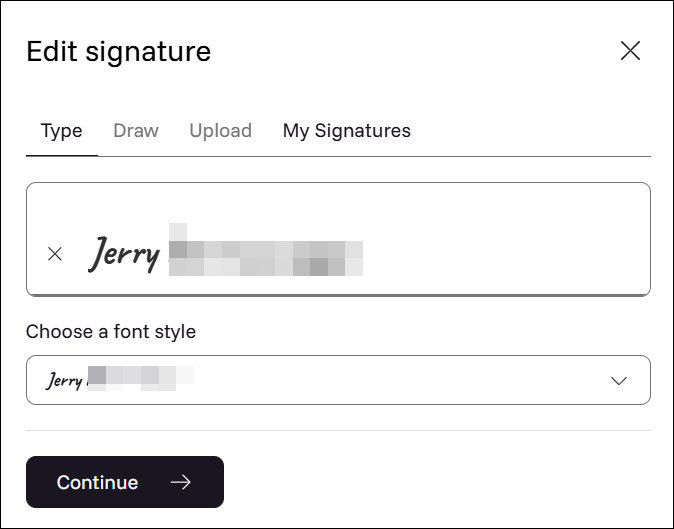
- Choose the signature style you want to use. Click the My Signatures tab to choose from signature styles you have previously created in your eSigner account.
Once confirmed, click the Continue button.
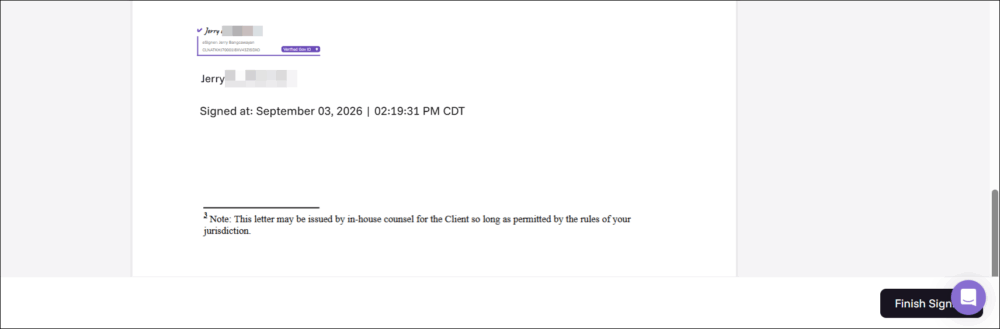
- Once your signature has been set on the document preview pane, click the Finish Signing button to apply a digital signature on top of your annotation-based signature.
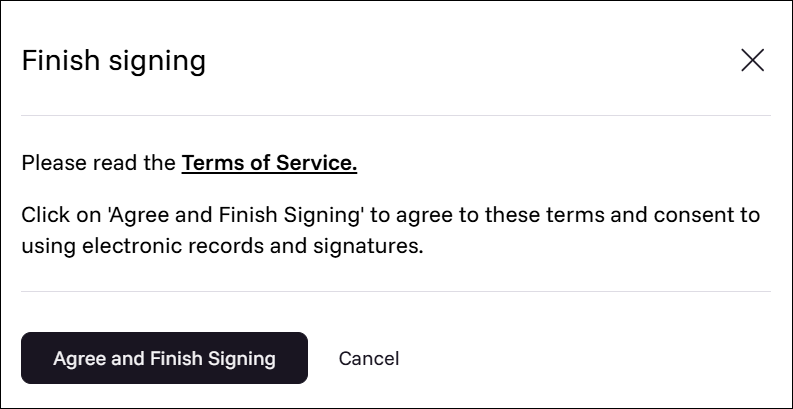
- Click the Agree and Finish Signing button.
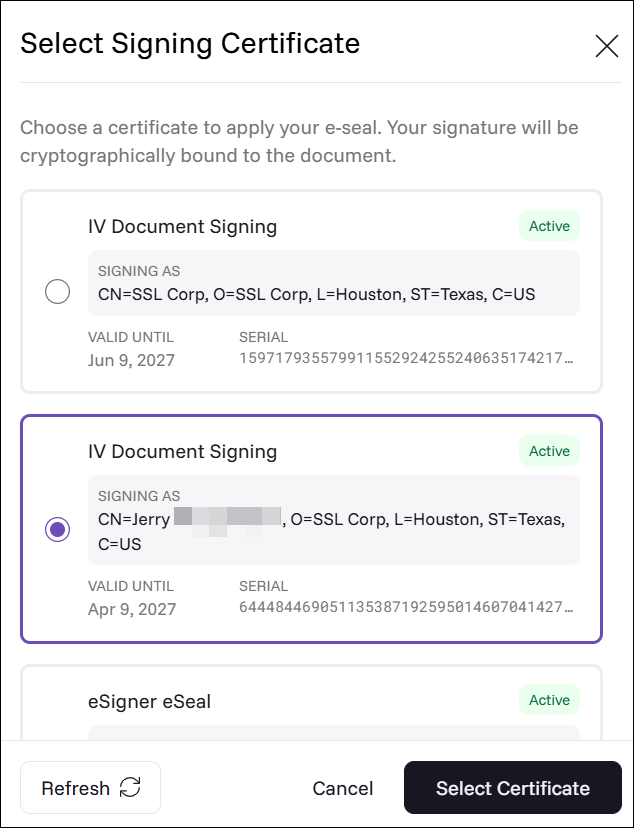
- Choose the certificate for digital signing.
If you have multiple eSigner-enrolled document signing certificates in your SSL account, all of them will appear as options for your digital signature.
Click the radio button for your preferred certificate and then click the Select Certificate button to proceed.
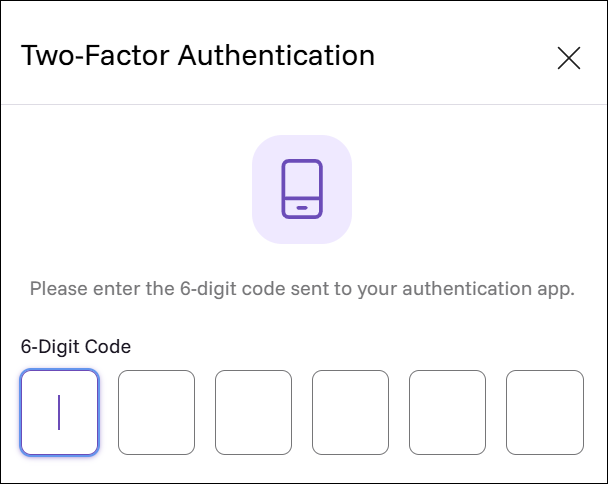
- Enter the code sent to the authentication method linked to your eSigner certificate (either SMS mobile or authenticator app)
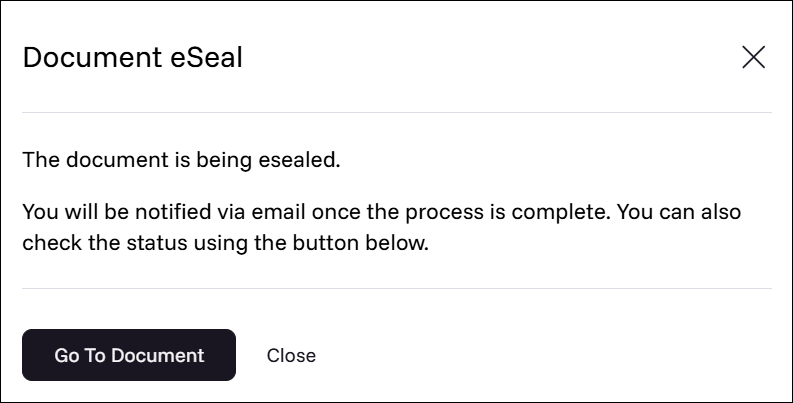
- Click Go To Document
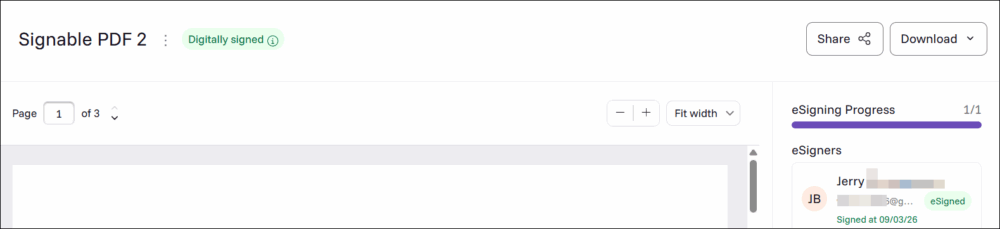
- You can confirm the application of a digital signature if the label Digitally signed appears on the document preview and the Download button appears, indicating that the digitally signed file can now be downloaded.
- You can now proceed to download the doc and view both the annotation-based signature and the digital signature.
Your annotation-based signature will be visible on the document itself. It will contain all the fields you have selected for it.
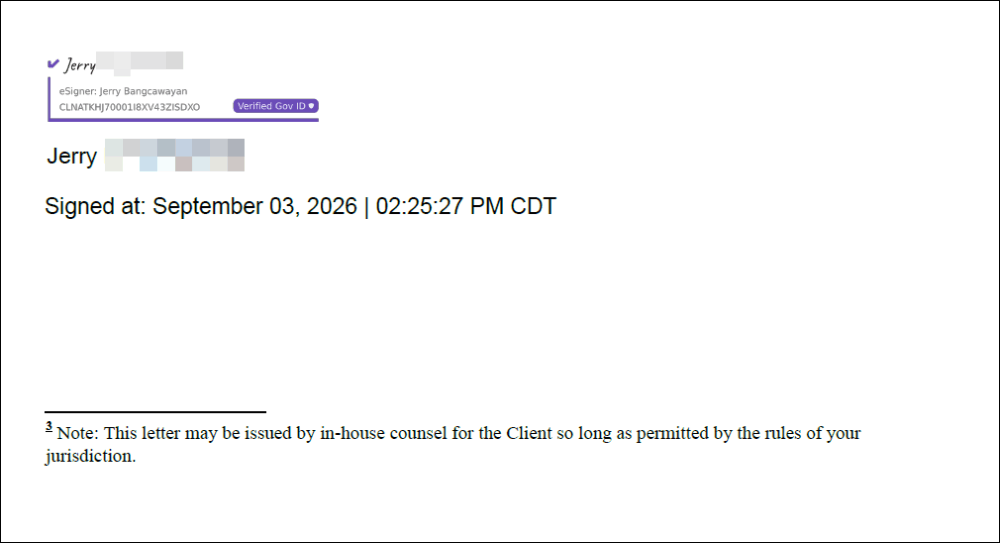
In addition to your annotation, your digital signature can be viewed by the following:
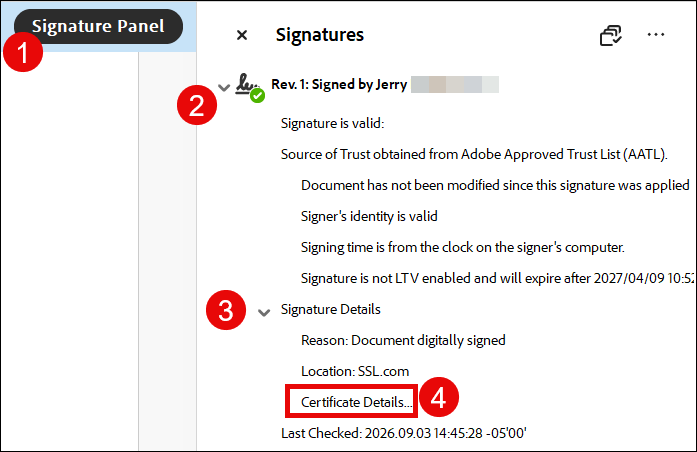
Click the Signature Panel button.
Click the arrow beside the name displayed as the signer
Click the arrow beside Signature Details and then select Certificate Details to view the specifics of the document signing certificate used.
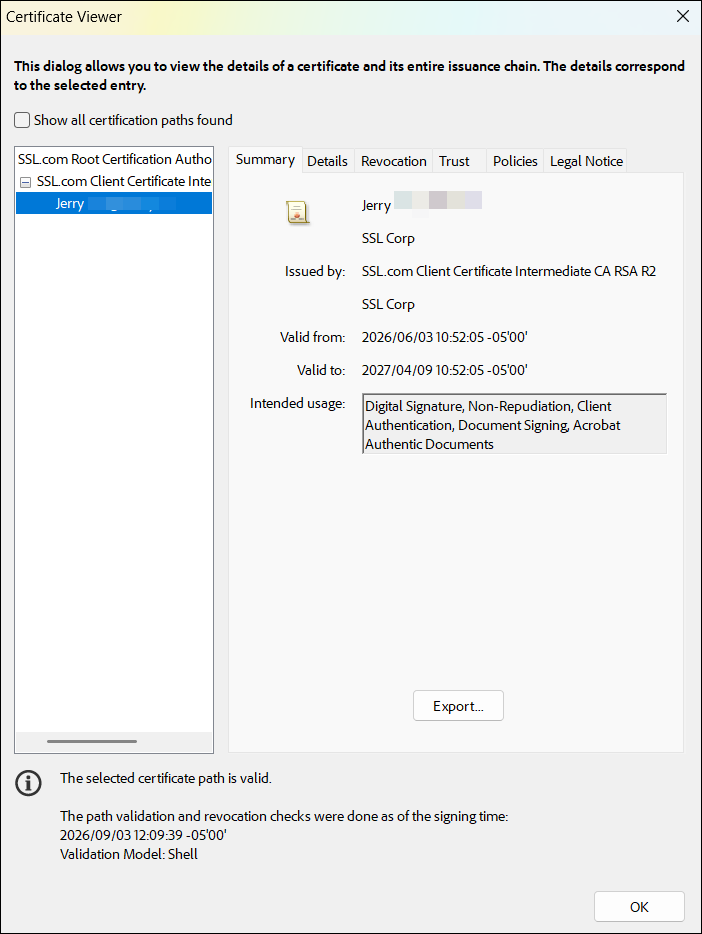
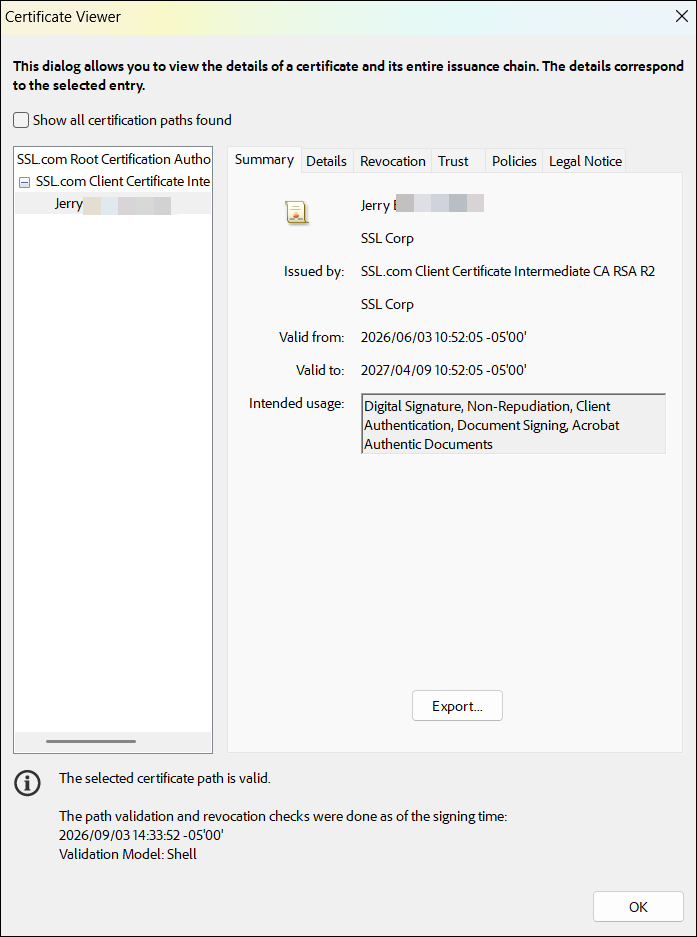
- The name of the certificate will then be displayed along with the CA that issued the cert. Adobe Acrobat Reader will confirm that the certificate is intended for digital signatures and document signing.


Digitally Sign and Finish
- Select Digitally Sign and Finish as your signing method.
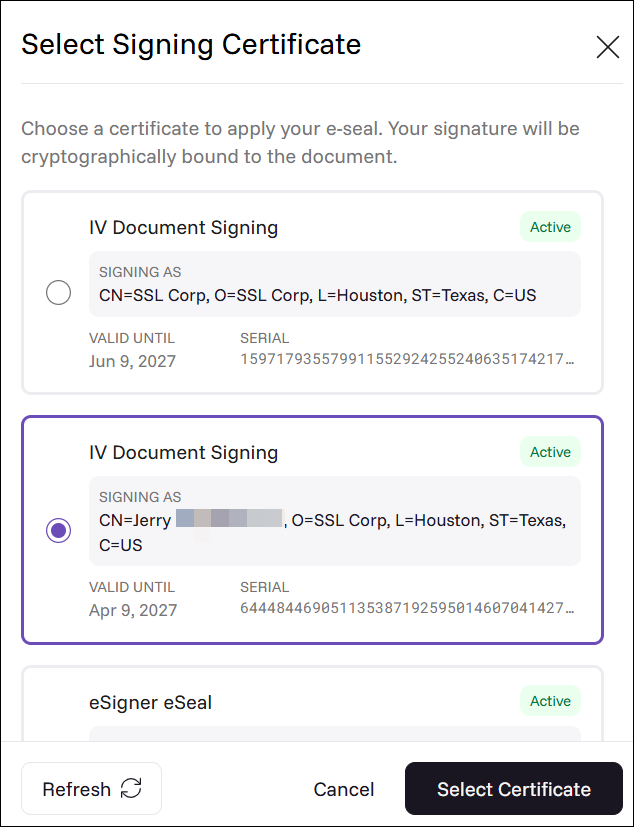
- Select your document signing certificate.
If you have multiple eSigner-enrolled signing certificates, they will all be displayed as choices.
Click the radio button for the certificate you want to use and then click the Select Certificate button.
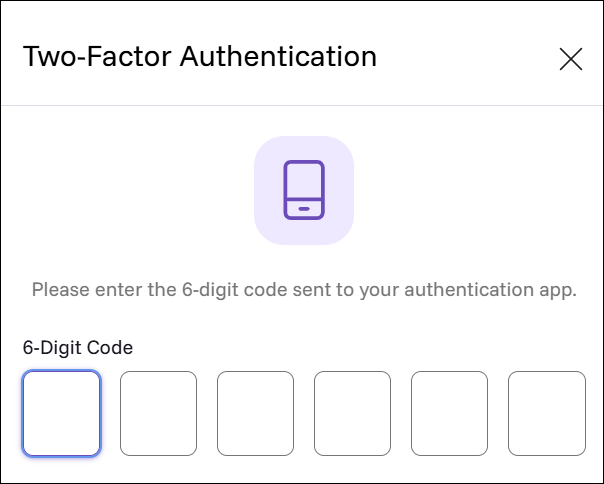
- Place the code generated from you eSigner certificate’s authentication method. This will come either through SMS from your registered mobile number or authenticator app installed on your phone.
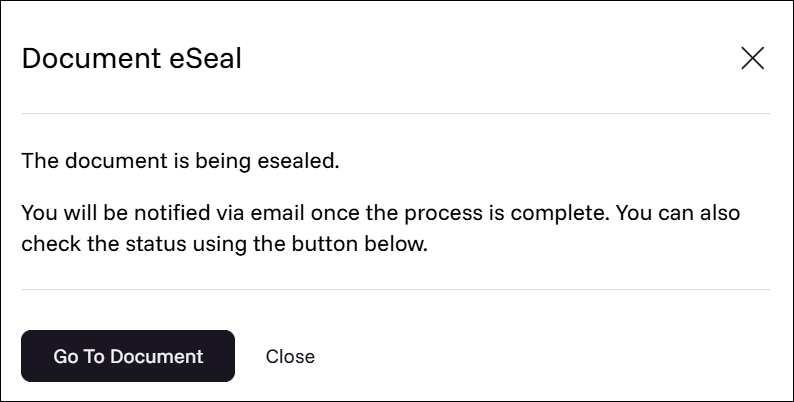
- You will be notified that the document is being signed. Click the Go To Document button to view the progress.
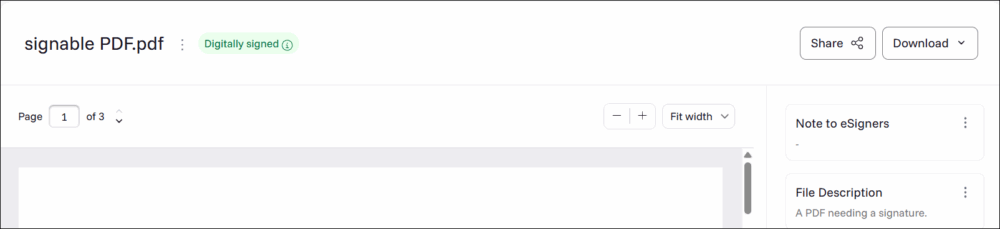
- Upon successful application of the digital signature, the label Digitally signed will be displayed on your screen and the Download option appears.
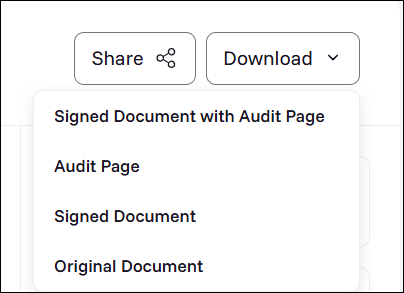
- Select which download format you want for the signed file.
Signed Document with Audit Page: Downloads one PDF containing both the digitally signed document and its Audit Page.
Audit Page: Downloads a PDF titled Certificate of Signature and Timestamp. This page provides important details such as the document owner’s name, the document name and creation date and information about the document signing certificate used.
Signed Document: Downloads only the digitally signed PDF, without the Audit Page.
Signed Document and Audit Zip: Downloads a ZIP file containing the signed document and the Audit page as separate files.
- View the Digital Signature on Adobe Acrobat Reader.
To view the signature on the downloaded signed file, use Adobe Acrobat Reader. Immediately upon opening the PDF, you will see this notification from Adobe: Signed and all signatures are valid.
As mentioned earlier, there will be no visible mark (i.e. First and Last Name) on the PDF denoting your signature but you will be able to validate the name of the signing certificate owner by clicking the Signature Panel button.
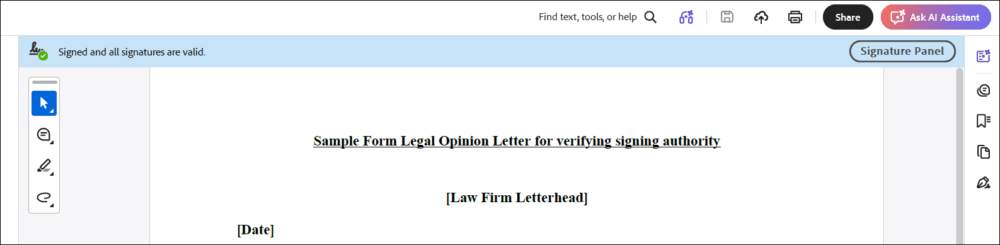
- Acrobat Reader will display the name of the signer. You can further validate specifics of the signing certificate used by clicking the arrow beside Signature Details and selecting Certificate Details
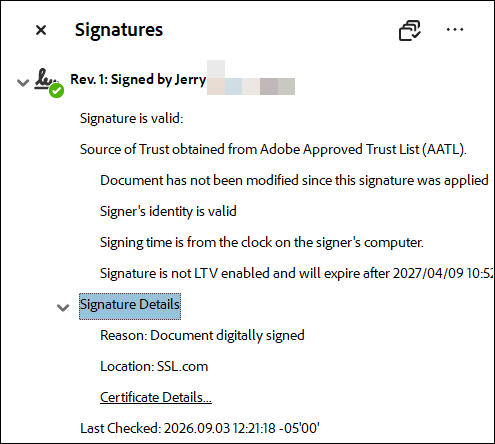
- Adobe will then display the name of the certificate owner, the Certificate Authority who issued the certificate, and the intended usage of the cert. Adobe will also confirm that the selected certificate path is valid.