

If you’ve forgotten your SSL.com username or password, or need to reset your two-factor authentication (2FA) settings, this guide walks you through the steps to securely regain access to your account.
Account recovery is designed with strong security controls to help protect your digital certificates and sensitive information from unauthorized access while you restore your login credentials.
How to Know Your Username
- Go to https://secure.ssl.com/password_resets/new
- Enter the email address associated with your SSL.com account in the form provided. Your username will be sent to this email address. If prompted by reCAPTCHA, select the checkbox and complete the verification to confirm you are human.
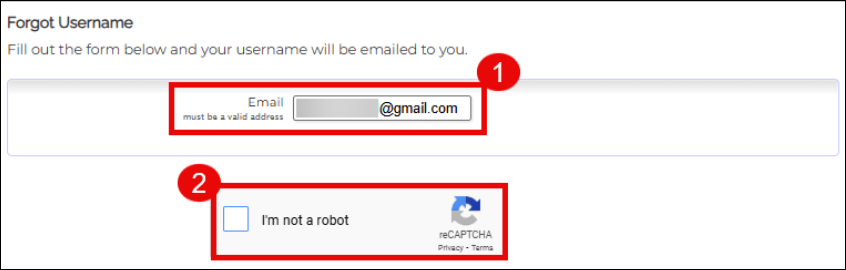
- Click the Submit button.
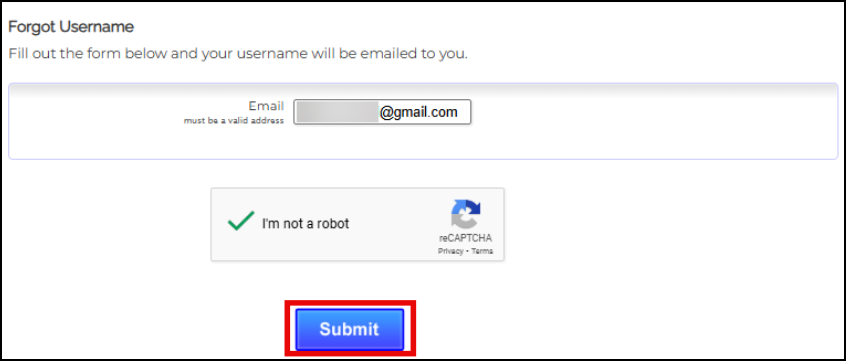
- A confirmation message will appear indicating that your username has been sent to your email address.

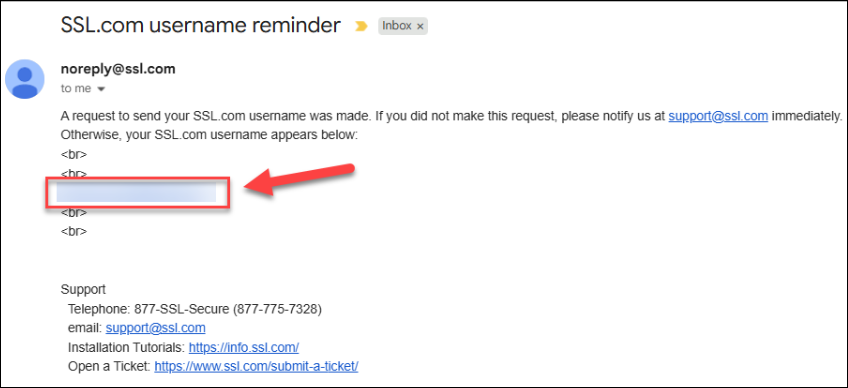
- Check your inbox and open the email from SSL.com to view your username.


How to Reset Your Password
- Go to https://secure.ssl.com/password_resets/new
- Enter the username associated with your SSL.com account. If prompted by reCAPTCHA, complete the verification to confirm you are human.
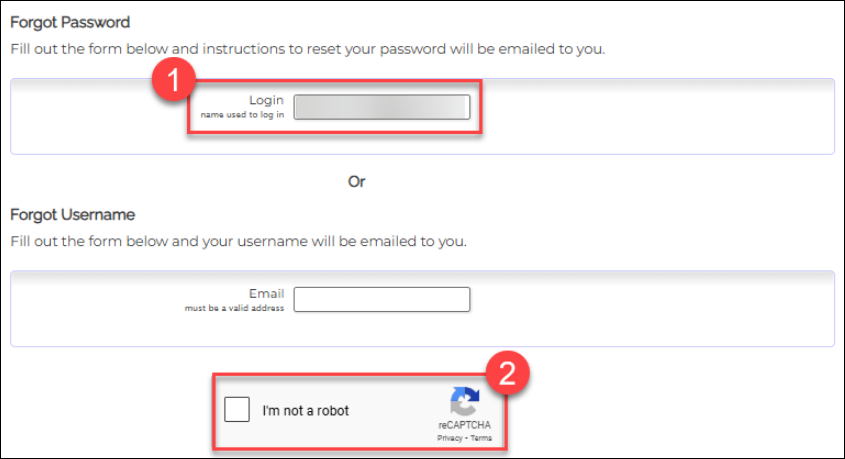
- Click the Submit button to continue.
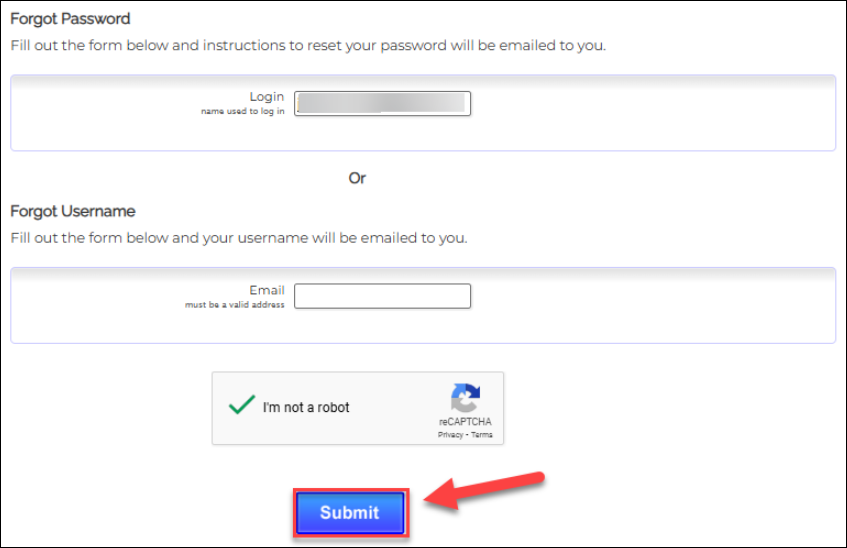
- A confirmation message will appear indicating that password reset instructions have been sent to your email.

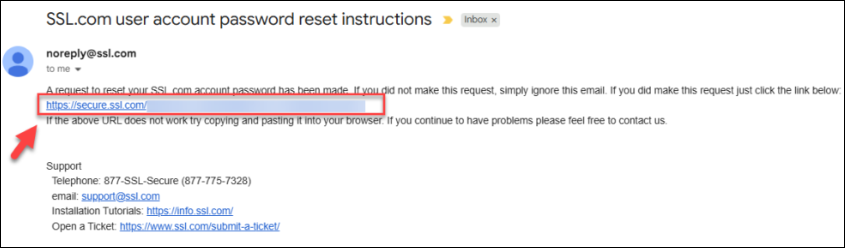
- Check your inbox for the email from SSL.com and click the password reset link provided.
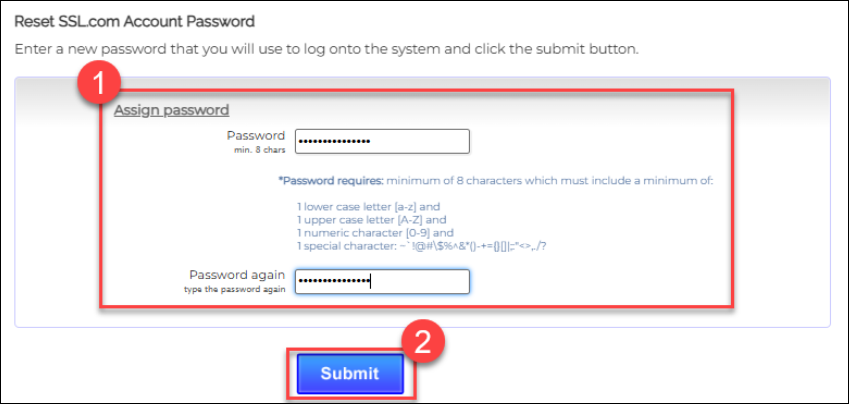
- On the reset page, enter your new password, confirm it by entering it again, and click the Submit button.
- Your password has now been successfully updated. You can log in using your new credentials. For security, store your password in a trusted password manager.


2FA Reset
SSL.com supports three two-factor authentication (2FA) methods to help secure your account: Authenticator App, Email Code, and SMS Code. You can enable one or more of these methods at the same time, allowing you to choose the most convenient option when logging in.
If you need to reset or update any of your 2FA methods, follow the steps below to securely manage your authentication settings.
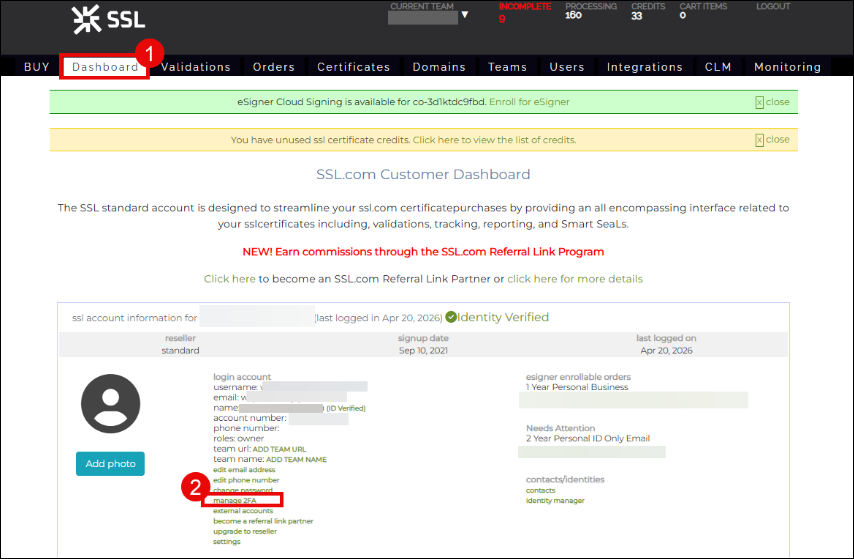
- Click Dashboard on the top menu, followed by manage 2FA.
- For the 2FA method that you want to reset, click the corresponding Disable button.
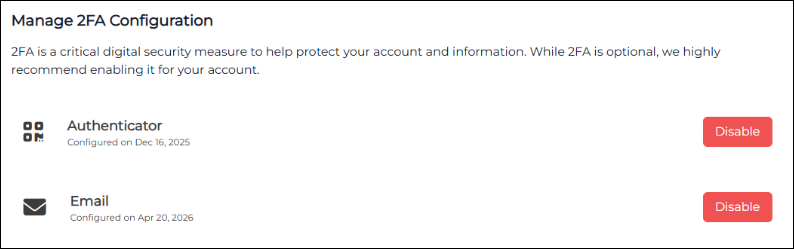
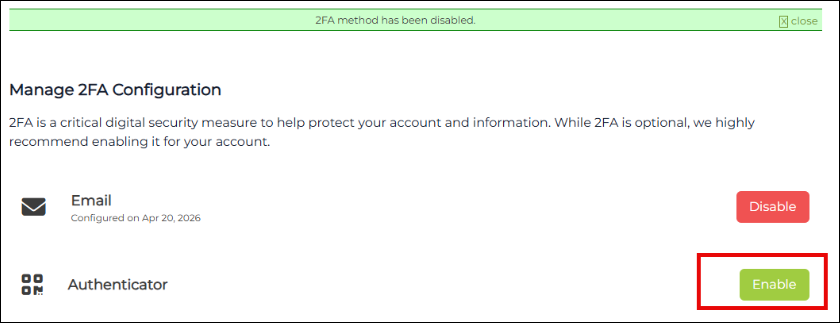
- A message will be displayed confirming that it is disabled and the button will change to Enable. Click it to reset the 2FA method.
- You can proceed to re-enable the 2FA method by following this linked resource: How to Enable Two-Factor (2FA) Authentication for your SSL.com Account.


