

Abstract: This guide explains how to upload identity and organizational validation documents for SSL.com certificate orders. It outlines the verification requirements that may apply to different certificate types, including SSL/TLS, S/MIME, Mark Certificates, as well as code signing and document signing certificates.
The article also walks through the step-by-step process for uploading documents through the SSL.com account dashboard and explains what happens during the validation review stage. Following these steps helps ensure faster certificate issuance while maintaining the trusted identity verification required for publicly trusted digital certificates.
When requesting a certificate, SSL must verify the identity of the certificate holder before issuance. This validation process is required by industry security standards, including those established by the CA/Browser Forum, which govern how publicly trusted Certificate Authorities verify applicants’ identities.
Proper validation ensures that certificates are issued only to legitimate individuals and organizations. This protects website visitors, email recipients, software users, and relying parties by preventing impersonation attacks and maintaining trust in encrypted connections, authenticated email communications, signed software, verified documents, and branded email logos.
In this guide, you’ll learn how to upload validation documents for your SSL.com certificate order, what documentation may be required depending on the certificate type and validation level, and how the verification process works.
Why Validation Is Required
Regardless of the certificate type, the underlying trust model depends on the issuing Certificate Authority verifying the identity of the certificate holder. This process ensures that browsers, operating systems, email clients, and other relying parties can trust that the entity named in the certificate is legitimate.
To maintain this global trust model, SSL must validate the identity of the certificate applicant before issuance. These validation procedures follow industry standards established by organizations such as the CA/Browser Forum.
The documentation and verification steps required depend on several factors, including:
- The type of certificate being requested (for example, SSL/TLS, S/MIME, code signing, document signing, or Mark Certificate)
- The validation level of the certificate, such as Individual Validation (IV), Organization Validation (OV), or Extended Validation (EV)
Step-by-Step: Upload Validation Documents in Your SSL.com Account
Follow these steps to upload the required documents for your certificate order.
1. Log in to Your SSL.com Account
Sign in to your SSL.com user account.
2. Locate Your Certificate Order
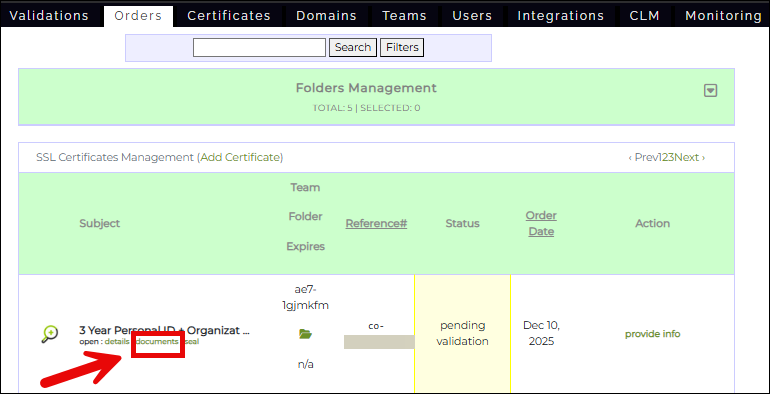
Navigate to the Orders tab and locate the certificate order that requires validation.
3. Open the Document Upload Page
Click the Documents link associated with your order.

4. Click “Upload Documents”
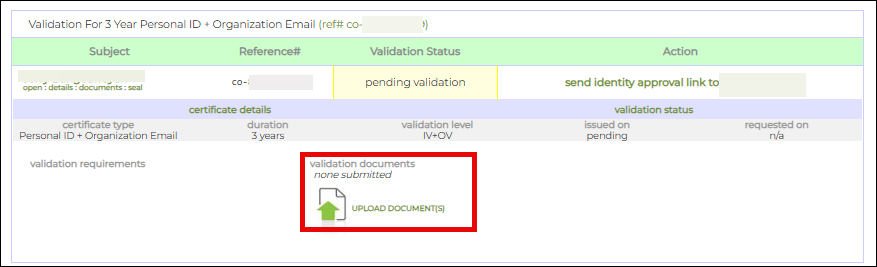
Select UPLOAD DOCUMENTS to begin submitting the required validation materials.
The specific documents required will depend on the type of applicant and certificate being ordered, as described below. Depending on your order, you will upload any or a combination of Individual Validation (IV) level documents, Organization Validation (OV) level documents, and Extended Validation (EV) level documents.

Validation Requirements by Certificate Type
Individual Validation
If the certificate is being issued to an individual, SSL.com must verify that person’s identity.
Provide the following:
Government-Issued Photo ID
- A scan of the front of a valid government-issued photo ID or passport page
- A scan of the back of the ID (if applicable)
The ID number may be obscured, but the following information must remain visible:
- Full name
- Address
- Year of birth
- Photograph
Identity Verification Photo
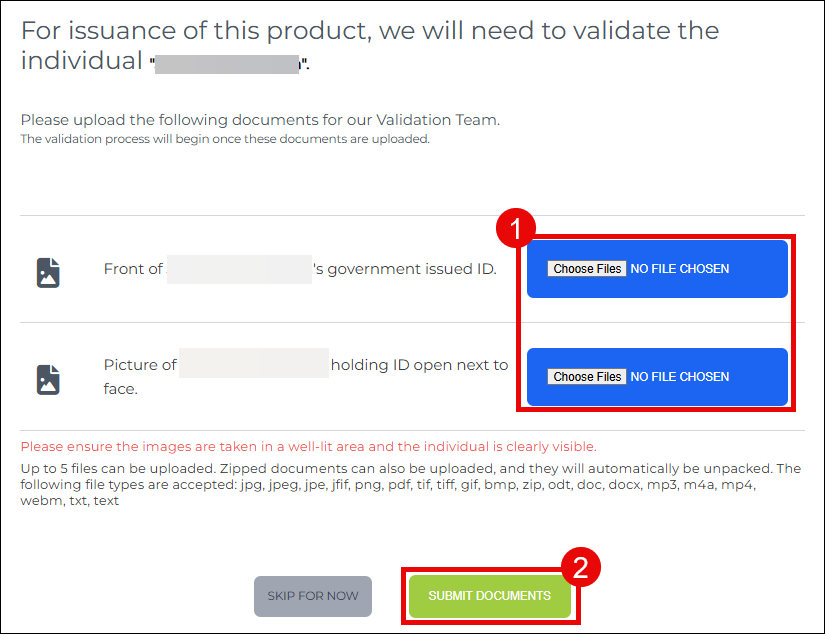
Submit a photograph of yourself holding the same government-issued ID next to your face so that your identity can be visually verified.
Requirements:
- Minimum 5 megapixels (MP) resolution
- Most modern smartphones meet this requirement
- Your face and the ID must be clearly visible
Submitting Individual Validation (IV) Level Documents
The following image shows what you will see when uploading IV-level documents. Click Choose File to upload each required document. Afterward, click SUBMIT DOCUMENTS to finalize the submission.

Alternative: AI-Based Identity Verification
As an alternative to manually uploading identity documents, SSL.com offers an AI-based identity verification process that streamlines and simplifies validation.
With this method, customers can securely verify their identity using a computer or smartphone—eliminating the need to upload scanned IDs or photos through the portal. Instead, SSL.com provides a guided, automated verification experience powered by AI identity verification software. This method is accessible after logging into customer’s account:: https://secure.ssl.com/users/iv_verification
Organization Validation
If the certificate is issued to a business or organization, SSL.com must confirm the organization’s legal existence and contact information.
In many cases, document uploads may not be required. Instead, you can provide a link to a reliable listing that confirms your organization’s information.
Provide one of the following:
Reliable Data Source Listing
A link to a listing that includes:
- Organization name
- Physical address
- Telephone number
Acceptable sources include:
- A government registry in the jurisdiction where the organization is legally registered
- A Qualified Independent Information Source (QIIS) business listing. Refer to the SSL.com guide Acceptable Business Listings for Validation for approved listing sources.
Additional Requirement for New Organizations
If the organization is less than three years old, you must also provide:
- A scan of the certificate requester’s government-issued photo ID
Submitting Organization Validation (OV) Level Documents
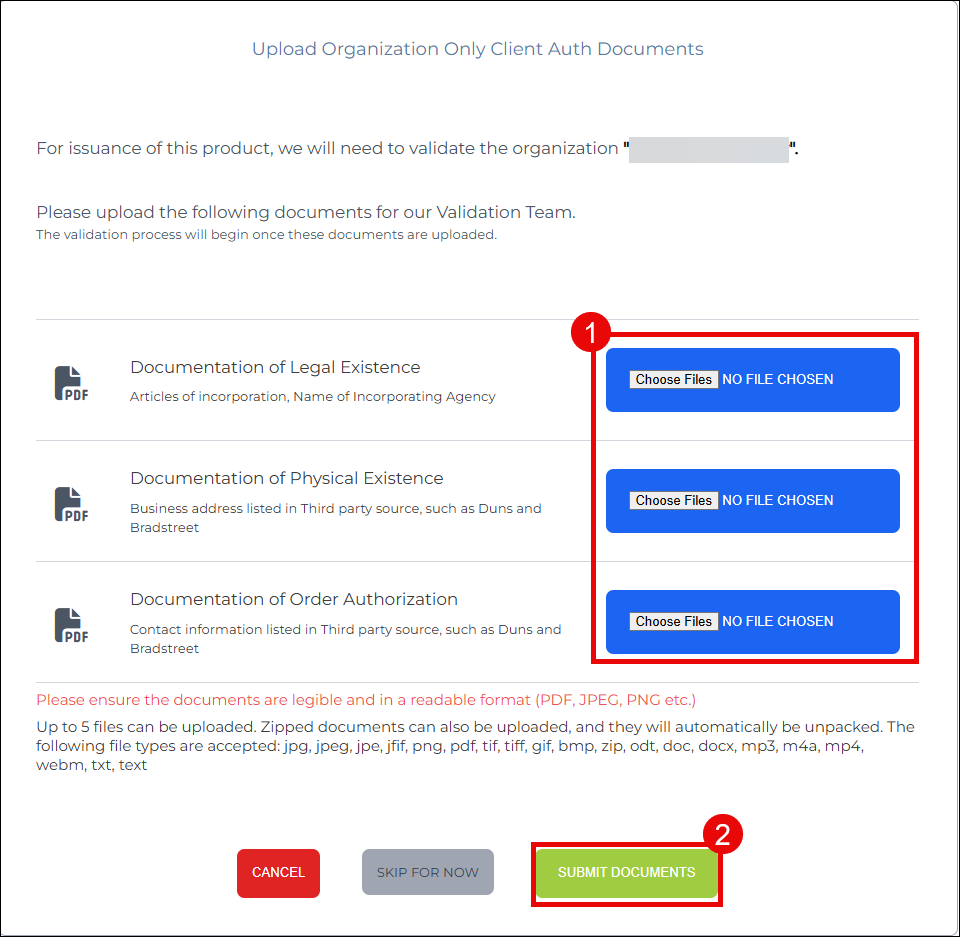
The following image shows what you will see when uploading OV-level documents. Click Choose File to upload each required document. Afterward, click SUBMIT DOCUMENTS to finalize the submission.

You may also submit your listing URL by:
- Emailing Support@SSL.com, or
- Use the live chat link on the SSL.com website.
In some cases, SSL.com may request additional documentation before issuing the certificate.
Extended Validation
EV Certificates provide the highest level of publisher authentication and may be issued only to registered businesses or organizations, as well as individuals who have registered sole proprietorships.
EV validation requires the following documents:
Required Agreements
Upload signed copies of:
Proof of Legal Existence
Provide one of the following:
- Articles of Incorporation or Registration
- A link to a government website listing your organization
Organization Verification Documentation
Provide one or more of the following:
- A Qualified Independent Information Source (QIIS) business profile. Refer to the SSL.com guide Acceptable Business Listings for Validation for approved listing sources.
- An attestation letter from a licensed professional (attorney, accountant, or civil-law/Latin notary):
Sample documents include:
- Legal opinion letter
- Certified Public Accountant attestation
- Government organization verification letter
SSL.com may request additional documentation if necessary to complete validation.
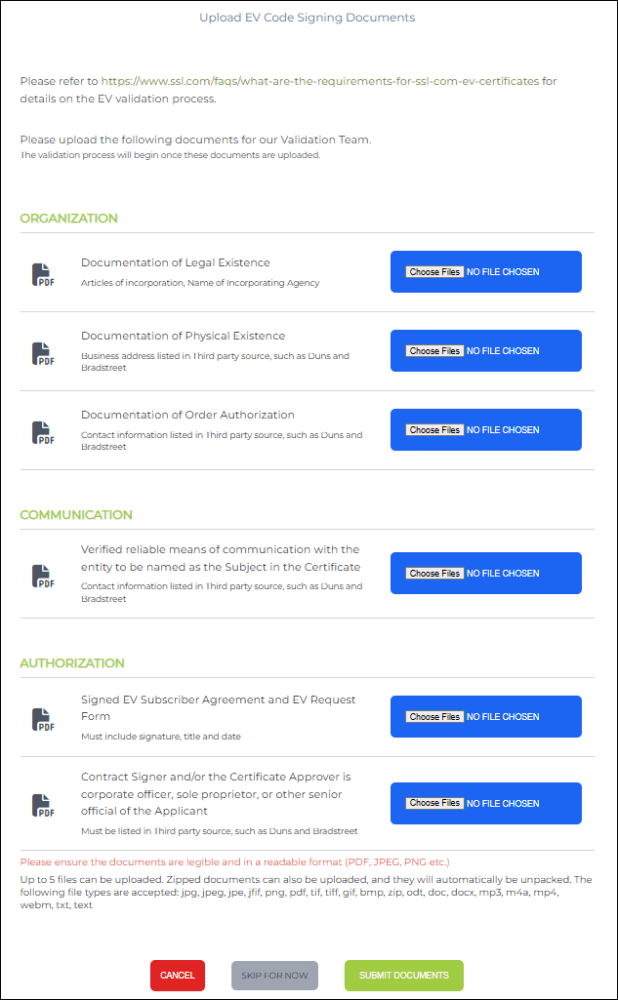
Submitting Extended Validation (EV) Level Documents
The following image shows what you will see when uploading EV-level documents. Click Choose File to upload each required document. Afterward, click SUBMIT DOCUMENTS to finalize the submission.

Accepted File Formats
The following formats are supported:
- JPG / JPEG / JPE / JFIF
- PNG
- TIFF / TIF
- GIF
- BMP
- ZIP (automatically extracted)
- ODT, DOC, DOCX
- TXT / TEXT
- MP3, M4A
- MP4, WEBM
You may upload up to five files per submission.
After adding your files, click Submit.
What Happens After You Submit Documents
Once your documents are submitted, SSL validation specialists will review the submitted materials and verify:
- Identity information
- Organization details
- Telephone contact information
After validation is complete, SSL.com will proceed with certificate issuance.
Conclusion
Uploading validation documents is a critical step in obtaining a certificate. These identity verification procedures ensure that only verified individuals and legitimate organizations can publish signed software or documents.
By completing the document upload process correctly and providing clear, accurate information, you help ensure fast certificate issuance.