


Our priority at SSL.com is to make your certificate buying and installation experience as smooth as possible. With this in mind, we’ve implemented an easy-to-use invoicing process. Here’s how it works:
Set Up Your Billing Profile
To make current and future purchases easier, you can set up a billing profile as part of your account. If you need to make purchases on behalf of a business, you can set up a separate billing profile within the same account.
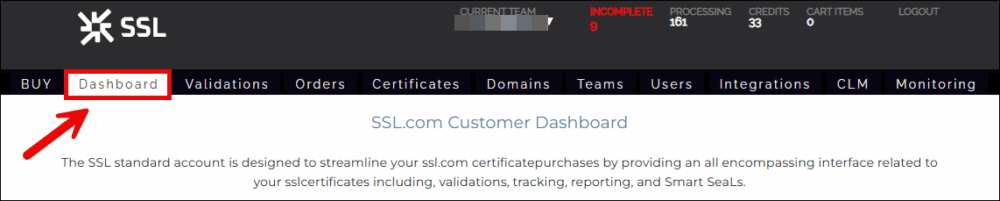
- After logging into your SSL.com account, navigate to the Dashboard.
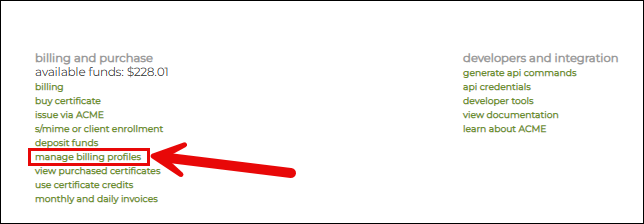
- From there, click on the manage billing profiles link near the bottom of the Dashboard.
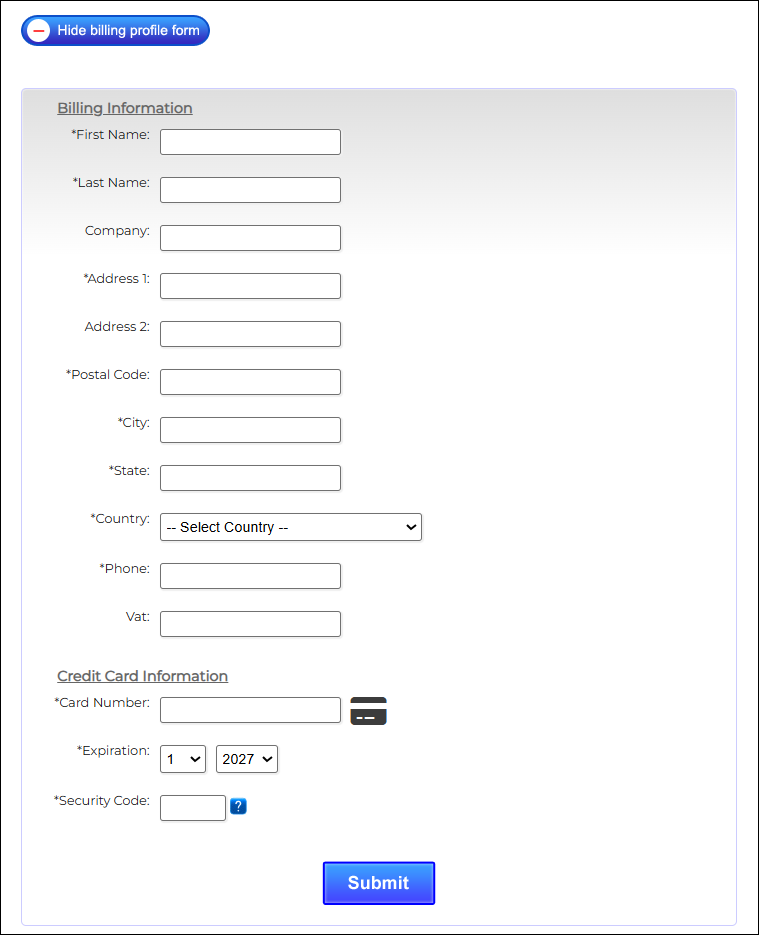
- Click the Add new billing profile dropdown, and add your information to the form. Click the Submit button when you are finished.


Paying Pending Invoices
If you have an unpaid invoice with SSL.com, you can access the invoice through your account and make a payment using the billing profile you’ve added.
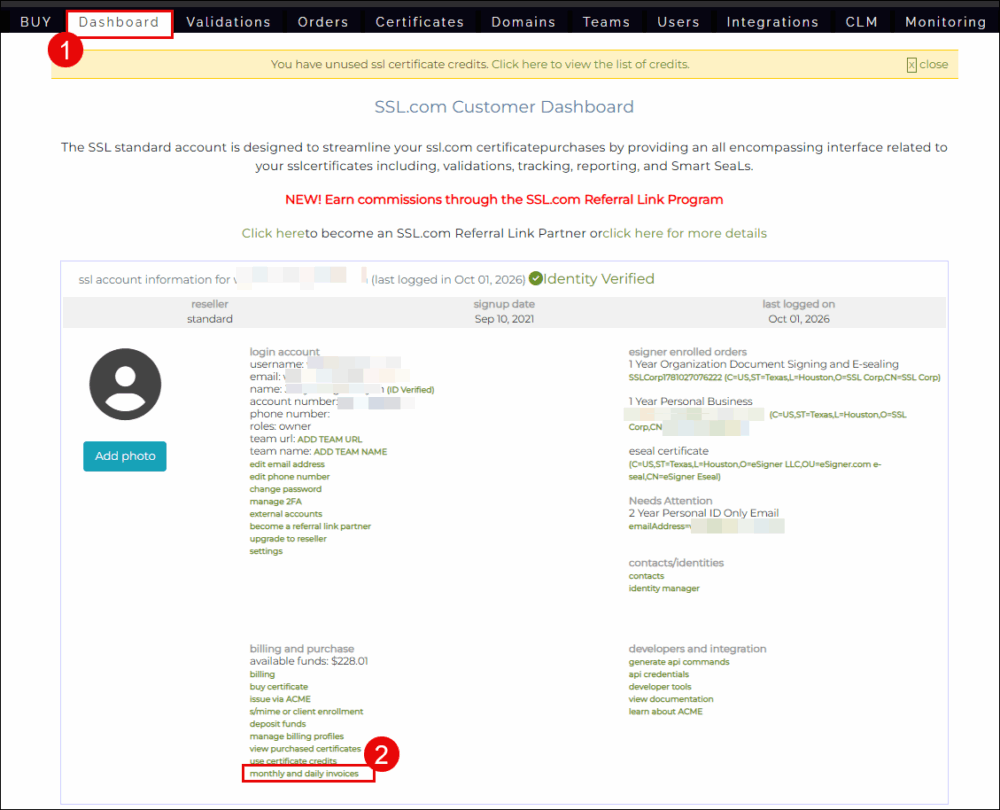
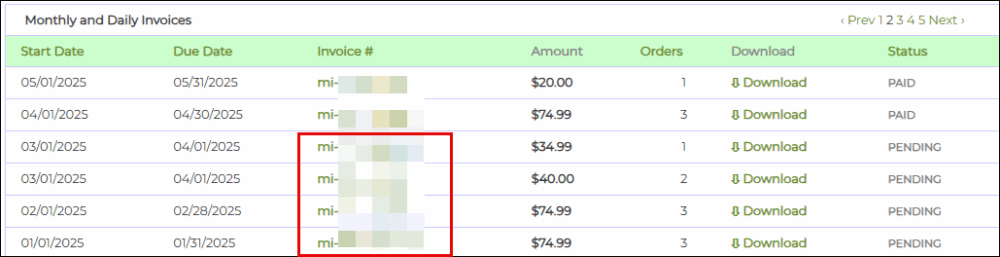
- When you’ve finished adding your billing profile, go back to the dashboard and click on the monthly and daily invoices link, located near the bottom of the dashboard.
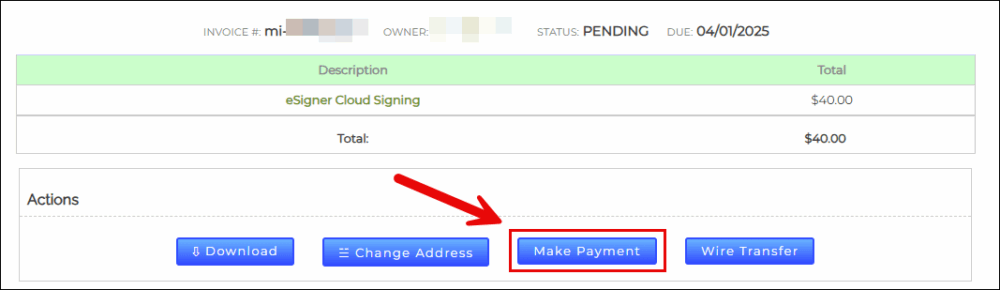
- Select the invoice you wish to view by clicking on the invoice number. Afterward, click Make Payment on the following screen.
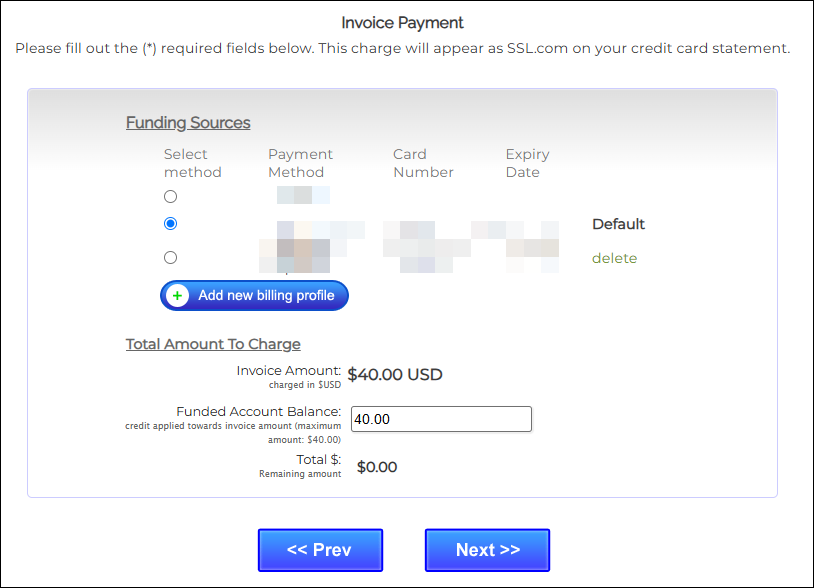
- From there, you’ll be able to choose the billing profile you’d like to use to pay your invoice.
-
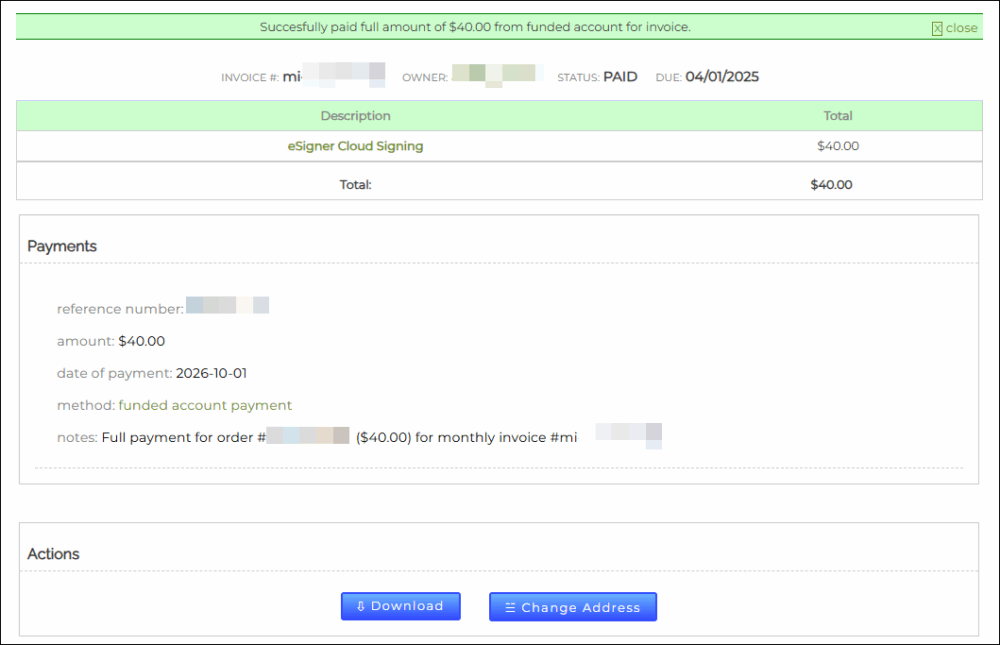
After you select your billing profile, hit Next and complete your payment. When your payment is complete, you will receive a message confirming that you have successfully paid for your invoice.


Frequently Asked Invoice Questions
What is this charge for?
This depends on what you purchased:
-
Standard certificates (SSL/TLS, code signing, S/MIME, etc.): This is a one-time charge for that purchase or renewal, not a recurring subscription. If you weren’t expecting it, check your certificate’s auto-renewal setting under Dashboard ? [certificate] ? Renewal Settings to see whether it’s set to renew automatically. For the transaction itself, go to Dashboard ? Billing and Purchases ? Monthly and daily invoices, open the invoice, and click the Description column for full detail.
-
eSigner: This is a recurring subscription charge, billed automatically to the card on file — not a one-time invoice. If a charge failed, signing operations are suspended immediately, and if unresolved for 30 days the credential is permanently terminated and can’t be reactivated. Check Dashboard ? Billing for your eSigner subscription status, or update your card if a payment failed.
How do I pay it?
-
Go to Dashboard ? Billing and Purchases ? Monthly and daily invoices, select the invoice, and click Make Payment.
-
Add or select a payment method right there.
-
Confirm and complete payment — you’ll get an on-screen confirmation.
When is it due?
Unless your agreement says otherwise, invoices are due on receipt and become overdue 30 days after the invoice date (shown on the invoice detail page).
I think this charge is wrong / I want to dispute it
Contact Support before the due date with the invoice number and a description of the issue — email Support@SSL.com, call 1-877-SSL-SECURE, or use chat. Disputing in writing before the due date pauses the overdue clock for 3 days (per Section 8.1 of the Certificate Services Agreement) while we work it out. Past due already? Reach out anyway, so we can still help.