

After your Mark Certificate (VMC, CMC, or GMC) is issued, SSL.com hosts your BIMI logo and certificate at bimi.ssl.com. This guide shows where to find the hosted URLs, how to download and check the files, and how to use the URLs in your BIMI DNS record.
Where to find your hosted URLs
You can get the URLs in three places.
In your SSL.com account
- Sign in to your SSL.com account. Click Orders in the top menu. Find your Mark Certificate order and click download.

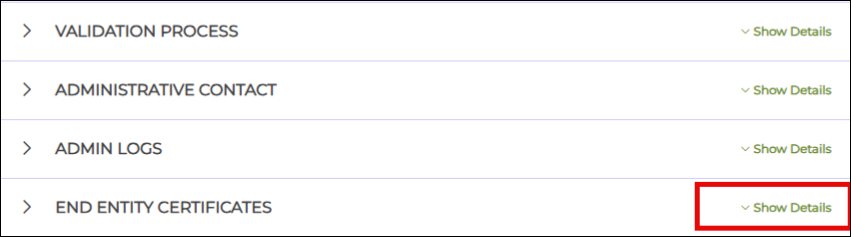
- Scroll to END ENTITY CERTIFICATES and click Show Details.
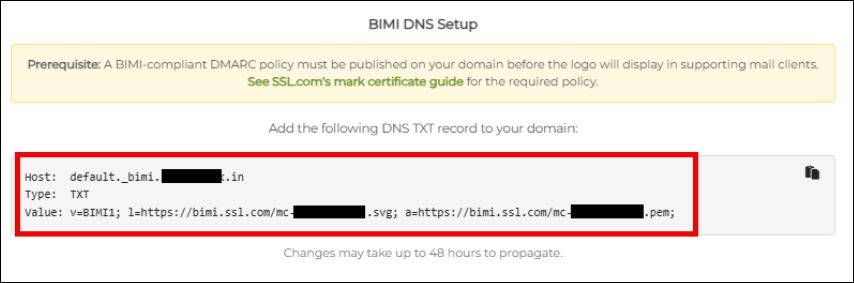
- In the BIMI DNS SETUP section, copy the hosted SVG URL and the prepared DNS TXT record. The certificate URL is in the a= tag of the record value.


In your issuance email
The email you receive when your Mark Certificate is issued includes BIMI DNS setup instructions with the hosted URLs.
Through the SSL.com API
If you manage certificates through the SSL.com API, the certificate retrieve response (API v1.4) includes a mark_svg_url field for Mark Certificates. Its value is the hosted logo URL, for example:
"mark_svg_url": "https://bimi.ssl.com/mc-a1b2c3d4.svg"
The certificate URL uses the same reference ID with a .pem extension.
Download and verify the hosted files
The files are public, so you can open them in a browser or fetch them from the command line.
Check that the files are reachable
curl -I https://bimi.ssl.com/mc-a1b2c3d4.svg
curl -I https://bimi.ssl.com/mc-a1b2c3d4.pem
Both should return HTTP/2 200. The SVG is served as image/svg+xml and the PEM as application/x-pem-file.
Download the files
curl -o bimi-logo.svg https://bimi.ssl.com/mc-a1b2c3d4.svg
curl -o bimi-cert.pem https://bimi.ssl.com/mc-a1b2c3d4.pem
You can also download the logo from the order page in your account (Click to download under BIMI SVG Mark).
Check the certificate file
The PEM file contains your Mark Certificate followed by its issuing chain. Count the certificates and check the first one:
grep -c “BEGIN CERTIFICATE” bimi-cert.pem
openssl x509 -in bimi-cert.pem -noout -subject -serial -dates
The count should be 2 or more, usually 3: your certificate, the intermediate certificate, and the SSL.com Mark Certificate root. The subject should show your organization, and the serial number should match the certificate in your account.
Check that the logo matches your certificate (optional)
Mailbox providers expect the hosted logo to be identical to the logo embedded in the certificate. To confirm this yourself, extract the embedded logo and compare hashes:
openssl x509 -in bimi-cert.pem -text -noout \
| grep -oE ‘data:image/svg\+xml;base64,[A-Za-z0-9+/=]+’ \
| sed ‘s|^data:image/svg+xml;base64,||’ \
| base64 -d | gunzip > embedded-logo.svg
sha256sum bimi-logo.svg embedded-logo.svg
The two hashes should be the same. On macOS, use shasum -a 256 instead of sha256sum.
Note: The logo’s <title> is set to your validated organization name at issuance. If you compare the hosted logo with the file you originally uploaded, the title may differ. That is expected.
Reference the URLs in your BIMI DNS record
Your BIMI record is a TXT record at default._bimi.<your domain>. The value uses the hosted URLs:
- l= — the hosted SVG URL
- a= — the hosted PEM URL (the authority evidence)
VMC, CMC, and GMC
v=BIMI1; l=https://bimi.ssl.com/mc-a1b2c3d4.svg; a=https://bimi.ssl.com/mc-a1b2c3d4.pem;
The a= tag is what lets mailbox providers verify your certificate. Gmail requires it for every Mark Certificate type (VMC, CMC, and GMC). Without it, Gmail does not show your logo.
The safest approach is to copy the prepared record from the BIMI DNS SETUP section of your account. It already has the right tags for your certificate type.
For step-by-step instructions, see Setting Up Your BIMI DNS Record with the CDN URL.