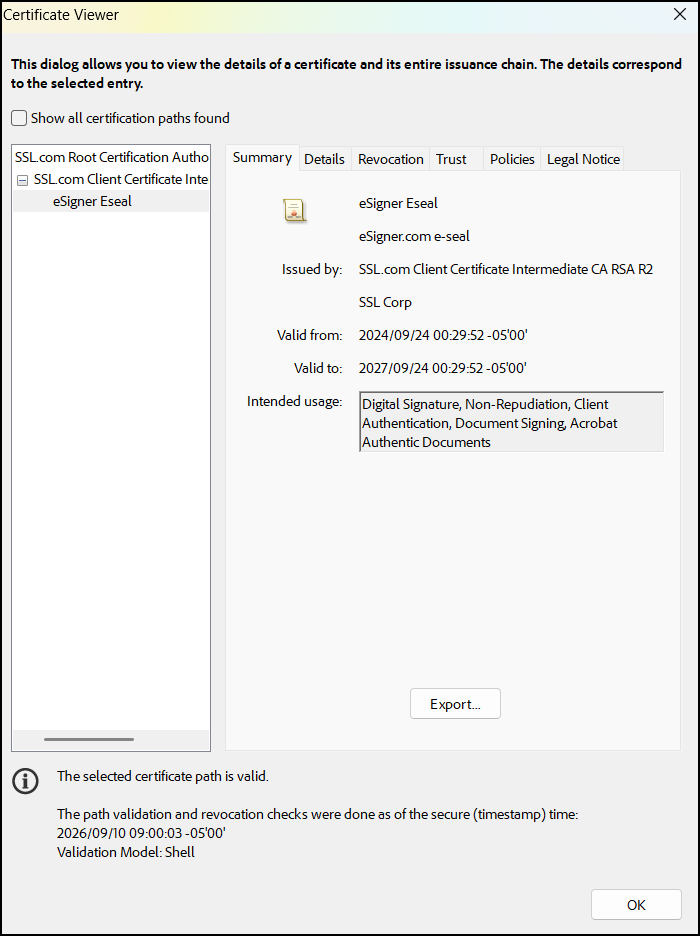
This guide demonstrates how to use eSigner eSeal to apply a digital signature to a PDF. eSigner eSeal is a generic certificate which provides a way to digitally sign PDFs without first purchasing an Individual Validation or Organization Validation document signing certificate. Because eSigner eSeal is intended for streamlined document signing, the certificate uses eSigner eSeal as the signer name.
The certificate details are embedded in the digital signature and cannot be customized to display the individual or organization that signed the document. Despite this limitation, eSigner eSeal can be useful for testing how certificate-based digital signatures appear and validate in supported PDF software.
eSeal a PDF
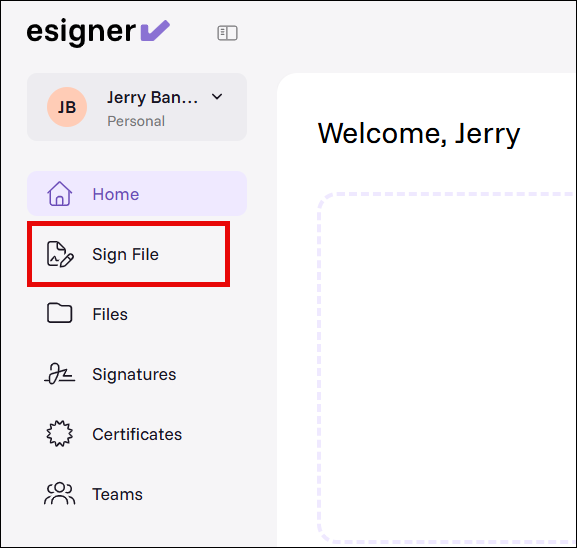
- From the main menu on the eSigner app, click Sign File.
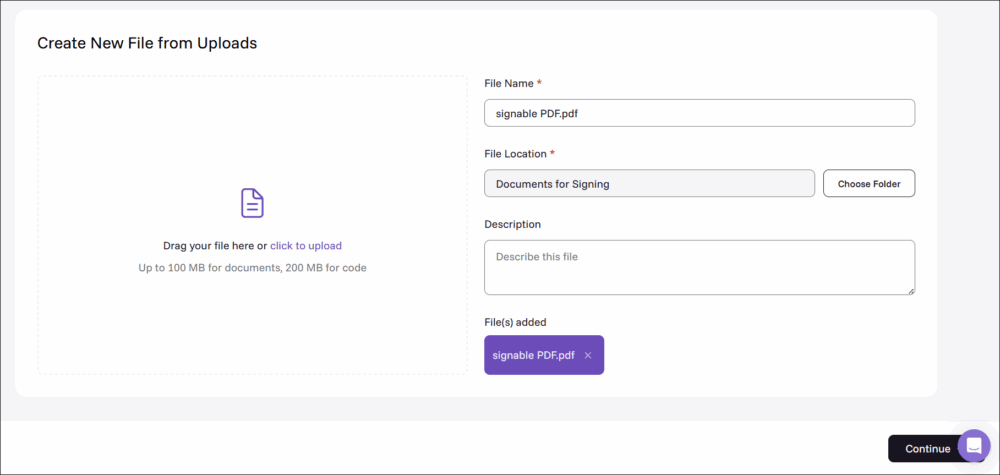
- A window will appear allowing you to choose your PDF.
Upload your file using the provided upload link.
Set a name for the document.
Choose which folder in your eSigner account the file will be saved.
Add a description for the file to help you remember its context in the future.
After finalizing the file settings, click the Continue button.
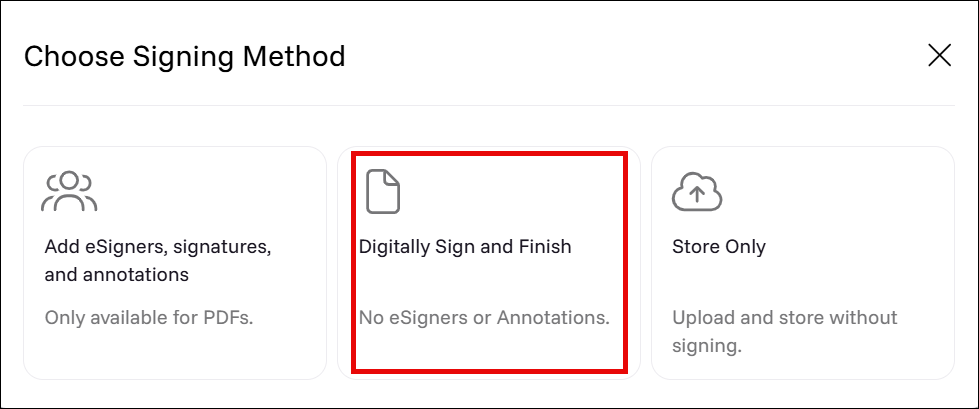
- Click Digitally Sign and Finish as your signing method.
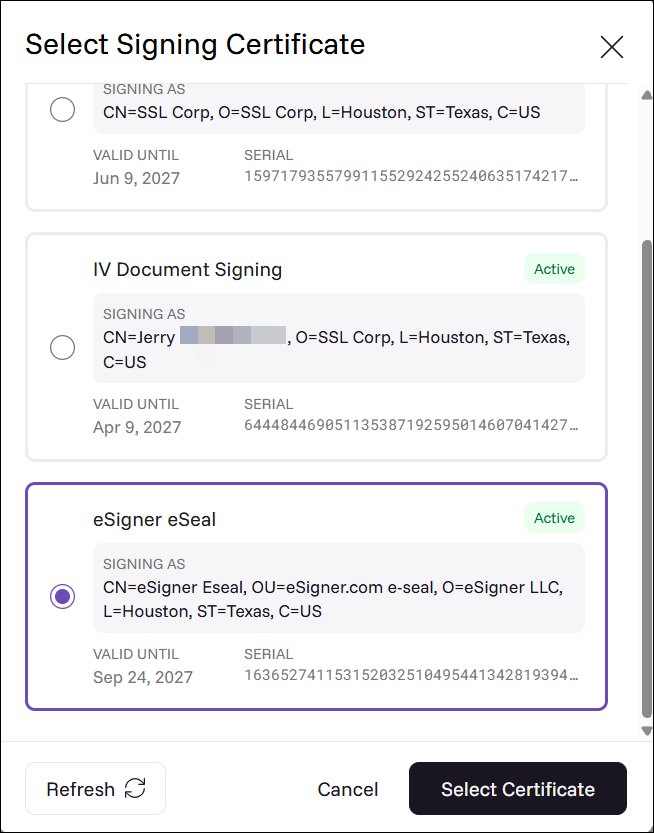
- When prompted to select which signing certificate you want to sign with, select eSigner eSeal. Afterward, click the Select Certificate button.
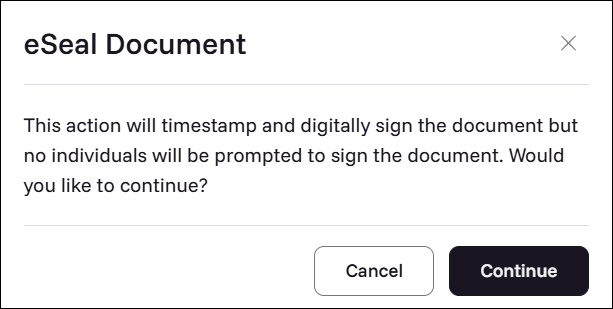
- A dialog box will appear telling you that your PDF will be digitally signed and time stamped but no individuals will be prompted to sign the document. Click Continue to proceed.
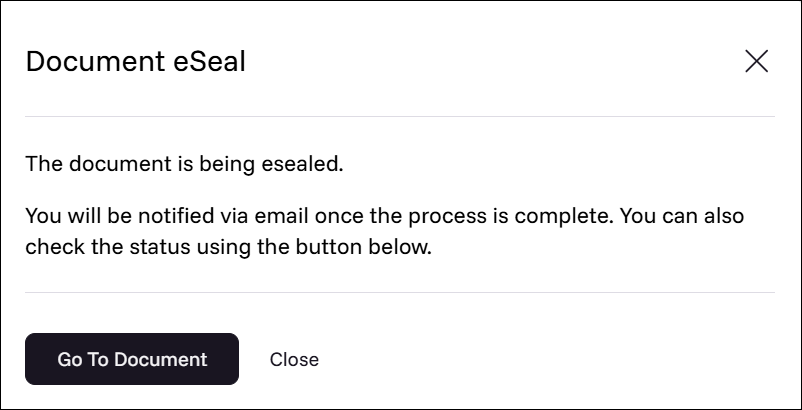
- You will be informed that the signing is in progress. Click Go To Document and wait for a few seconds for the signing to be completed.
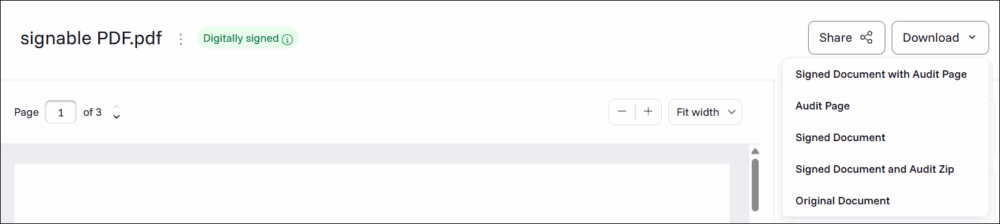
- Upon successful digital signing of your PDF, the status Digitally signed will appear as well as those of download options for the signed file.


Check the Digital Signature on the PDF with Adobe Acrobat Reader
- On the eSigner app, download the signed file by clicking Signed Document.
- Open Adobe Acrobat Reader. Immediately you will see this message from Adobe: Signed and all signatures are valid. Click the Signature Panel button to view the details of the digital signature.

- Adobe will show that the PDF was signed by eSigner eSeal certificate. Click the arrow to view the signature properties.
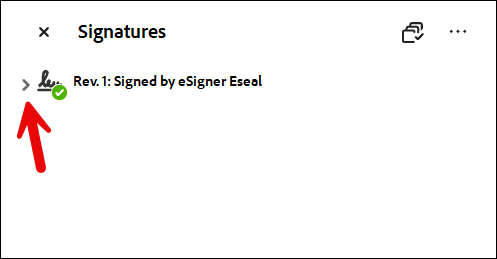
- Adobe will confirm that the signature is valid, the document has not been modified since the signature was applied, the signature includes an embedded timestamp, and the signature is Long Term Validation (LTV) enabled.
Click Signature Details to further view the details of the signing certificate. Next, click Certificate Details.
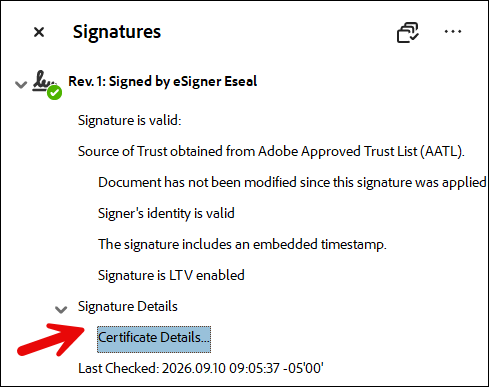
- On the Certificate Viewer box that appears, Adobe will confirm that the eSigner eSeal certificate can be used for such functions as digital signature, non-repudiation, and document signing.