eSigner is a browser-based application that lets you apply digital signatures to Microsoft Office files, including Word documents, Excel workbooks, and PowerPoint presentations.
A digital signature verifies the authenticity, integrity, and origin of a document without adding a visible signature block to its content.
How eSigner Digital Signatures Work
eSigner uses digital certificates based on public key infrastructure (PKI). Each certificate binds an identity, such as an individual or an organization, to a cryptographic key pair. This provides three core assurances:
- Authentication: eSigner digital signatures offer multiple levels of identity verification, confirming that the signer is who they claim to be and establishing trust in signed documents and code.
- Integrity: The document cannot be altered after signing without invalidating the signature.
- Non-repudiation: Because the signature guarantees both authentication and integrity, the signer cannot credibly deny having signed the document. Digital signatures are legally recognized in many jurisdictions. Laws such as the U.S. ESIGN Act and EU eIDAS Regulation establish their validity and enforceability.
Requirements
Before you begin, make sure you have the following:
- An active eSigner account. Check this guide on how to create your account: Getting Started with your eSigner Account.
- A signing certificate. Choose one of these options:
a) Your own document signing certificate: To display the name of the signer (an individual or organization) in the signature, purchase a document signing certificate from SSL.com and enroll it in the eSigner cloud signing service. For detailed instructions, see Enroll with eSigner for Remote Document and Code Signing. After successful enrolment, your certificate will appear as an option for signing in the eSigner browser app.
b) eSigner eSeal: eSigner eSeal is a generic certificate that lets you sign documents without first purchasing an Individual Validation (IV) or Organization Validation (OV) document signing certificate. It automatically appears as a certificate option in eSigner. Because eSeal is designed for streamlined signing, the signer name appears as eSigner eSeal.
Steps to Sign
The following procedure uses a Word document as an example. The same steps apply to Excel and PowerPoint files.
- Sign in to your eSigner account.
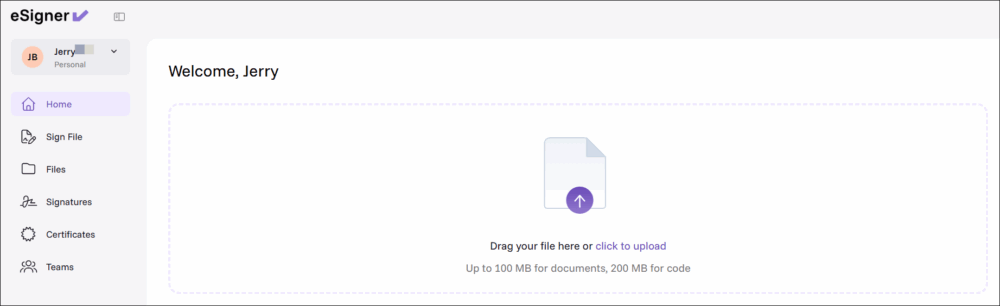
- Select the Home tab, then click anywhere inside the upload area.
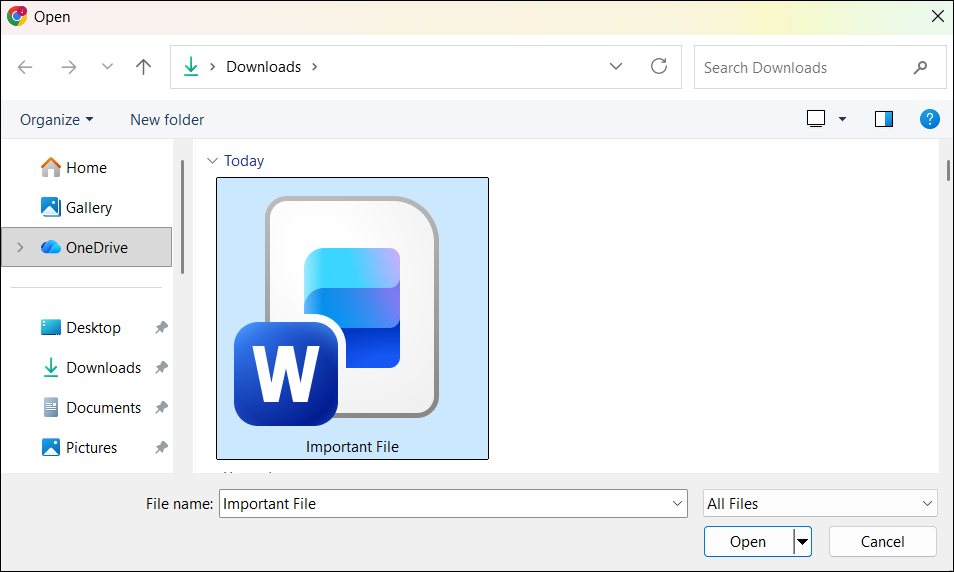
- In the file browser, select your file and click Open to upload it.
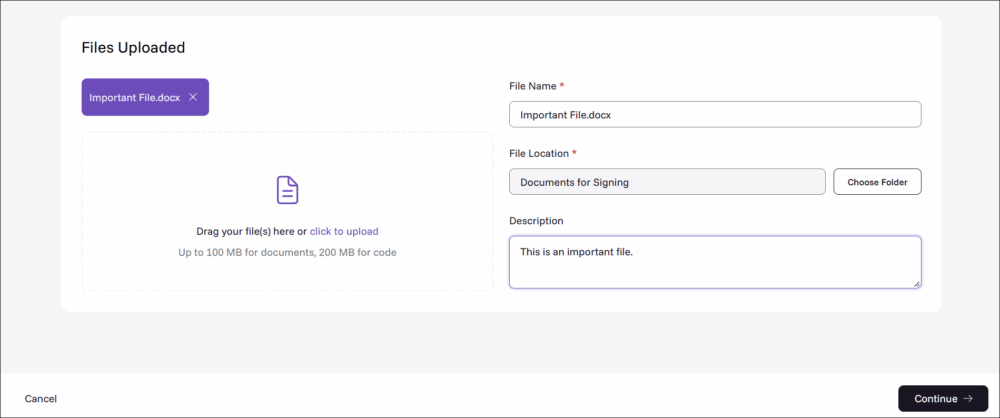
- Configure the document settings:
- Enter a name for the document.
- Select the eSigner folder where the file will be saved.
- Add a description to help you identify the file later.
When finished, click Continue.
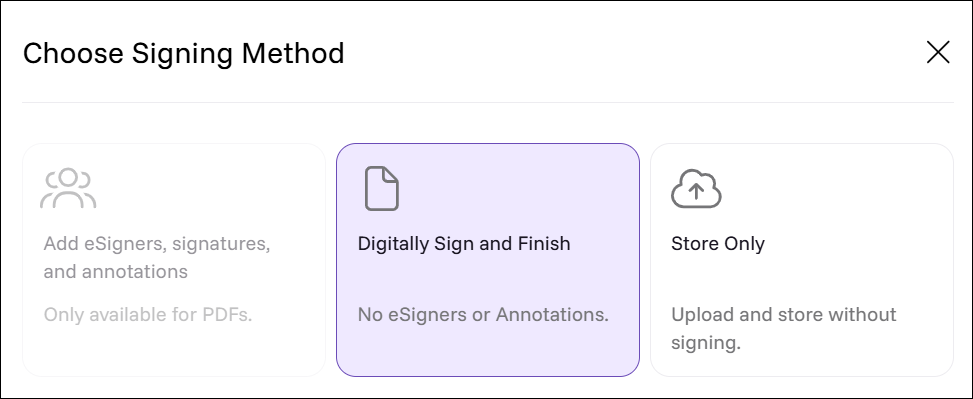
- When prompted to choose a signing method, select Digitally Sign and Finish.
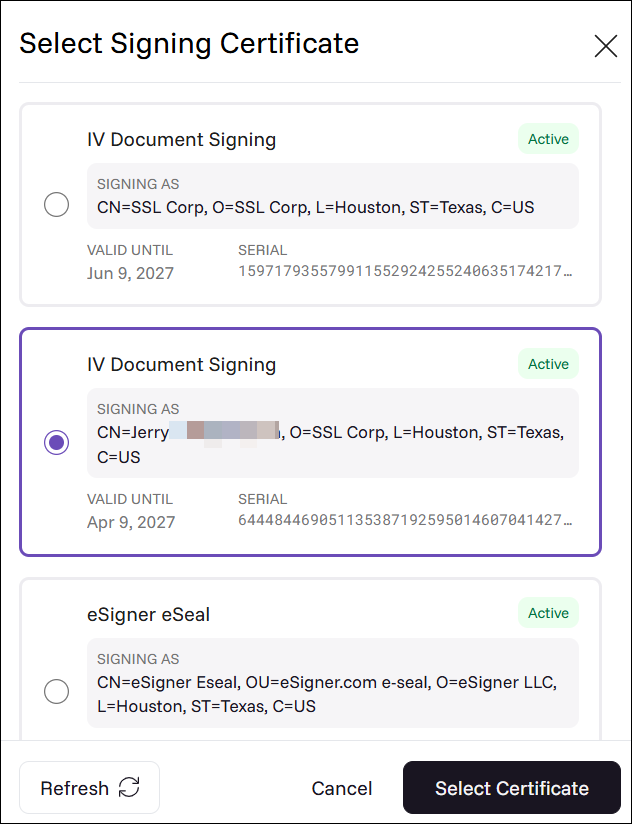
- Select your document signing certificate. If you have multiple certificates enrolled in eSigner, all of them are listed. Select the radio button next to the certificate you want to use, then click Select Certificate.
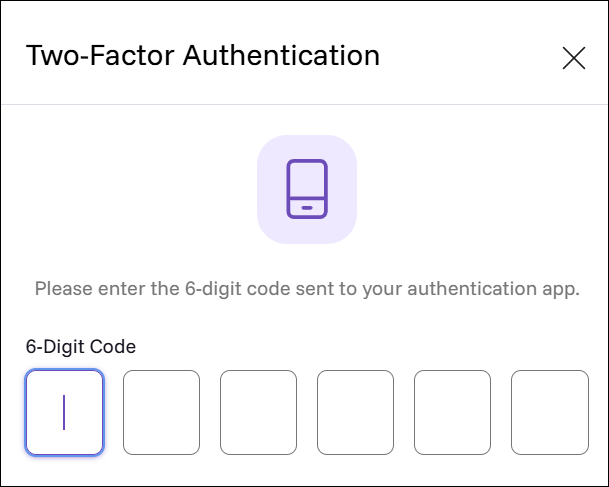
- Enter the six-digit one-time code generated by your certificate’s authentication method. Depending on your setup, you receive this code by SMS on your registered mobile number or through an authenticator app on your phone.
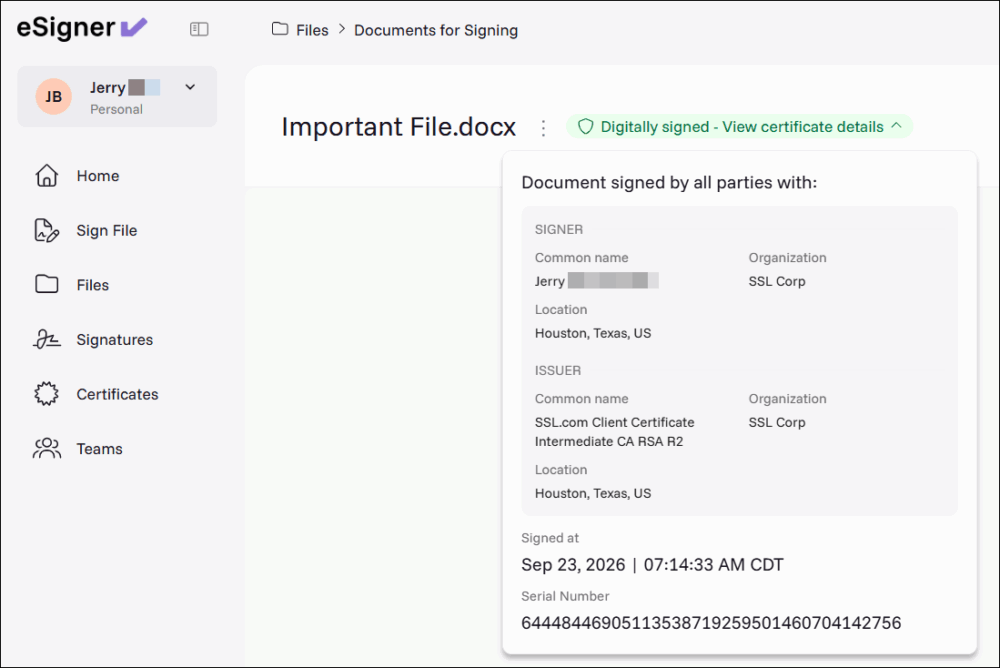
- After a few seconds, eSigner confirms that the file has been digitally signed. To verify the signer name and certificate, expand Digitally signed – View certificate details. In the example shown, the file was signed with an Individual Validation + Organization Validation (IV+OV) certificate. As a result, the signer’s name appears in the Common name field, and their employer appears in the Organization field. eSigner also displays the signing date, the issuing CA, and the certificate’s serial number.
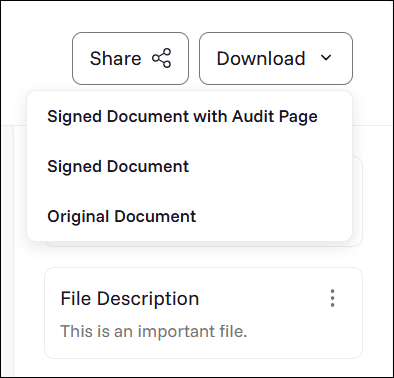
- To save the signed file to your computer, click Download on eSigner, followed by Signed Document.
Check the Digital Signature on Your Microsoft Office Document
The screenshots below show a digitally signed Word document but the steps for checking a signature are the same for Excel and PowerPoint files.
- From the eSigner app, download and open the signed Microsoft document.
- Click the File tab.
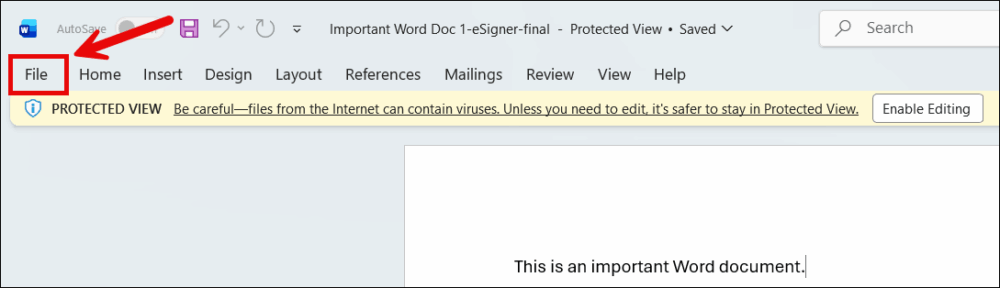
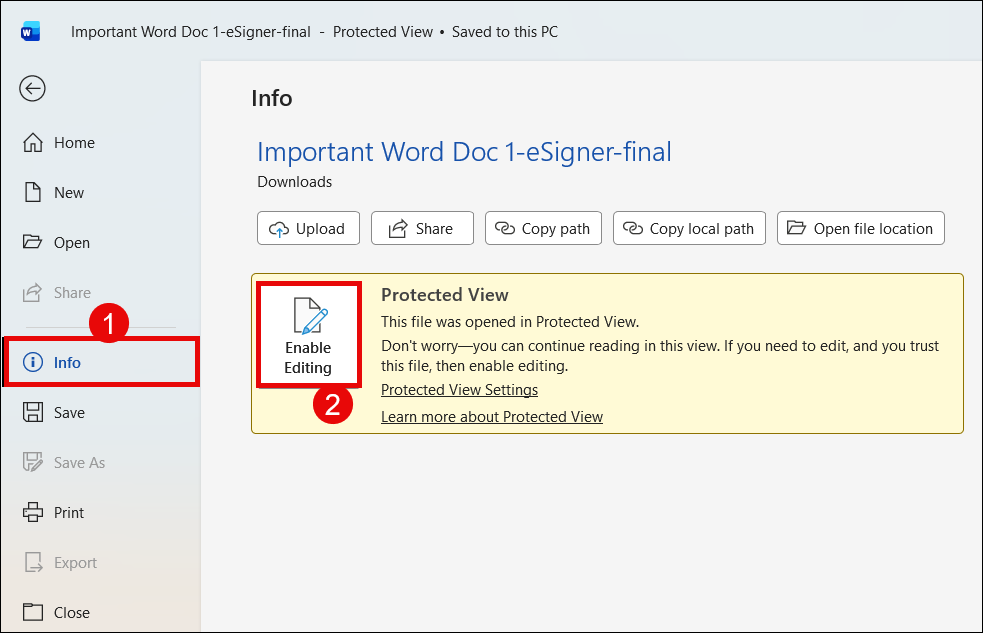
- Click the Info tab. Depending on your Microsoft app’s Protected View settings for files downloaded from the internet, follow either substep 3a or 3b below.
a) If Protected View is enabled: Click Enable Editing to view the signature details. You will not actually edit the document because it has been signed and marked as final. This button only allows you to access the signature information for the trusted file. After clicking Enable Editing, continue to substep 3b below.
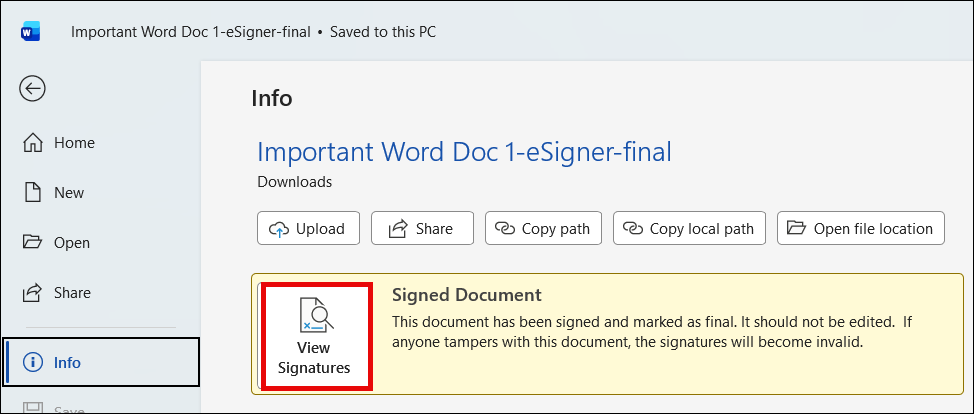
B) If Protected View is disabled: Click the Info tab, then click View Signatures.
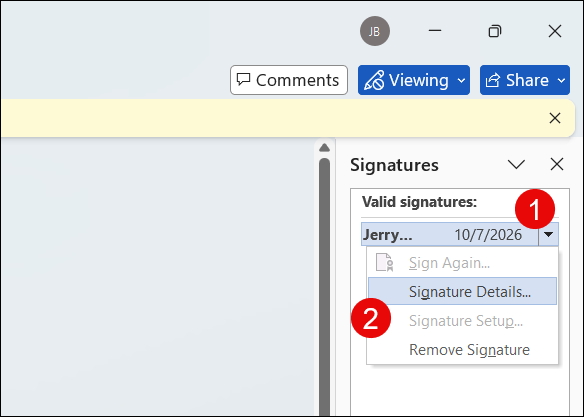
- The Signatures section then appears and displays the name of the organization or individual who digitally signed the document. Move your mouse cursor to your displayed name and then click on the drop-down arrow. Afterward, click the option for Signature Details.
- Your Microsoft app will confirm that the signed document has not changed, and the signer’s signature and certificate are valid. Additionally, the name of the individual or organization that signed the document will also be displayed.
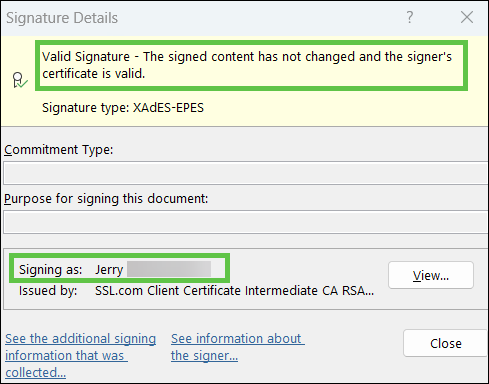
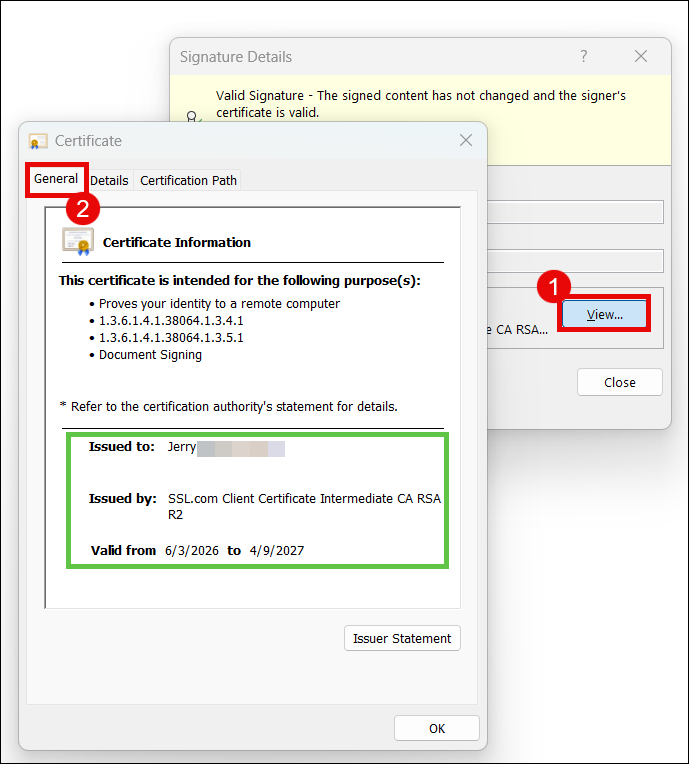
- To further check the details of the document signing certificate that was used, click the View button, followed by the General tab. You will then see the following details:
– confirmation that the certificate is intended for document signing.
– confirmation that SSL.com is the CA that issued the certificate.
– the name of the person or organization to whom the certificate is issued.
– the validity period of the certificate.